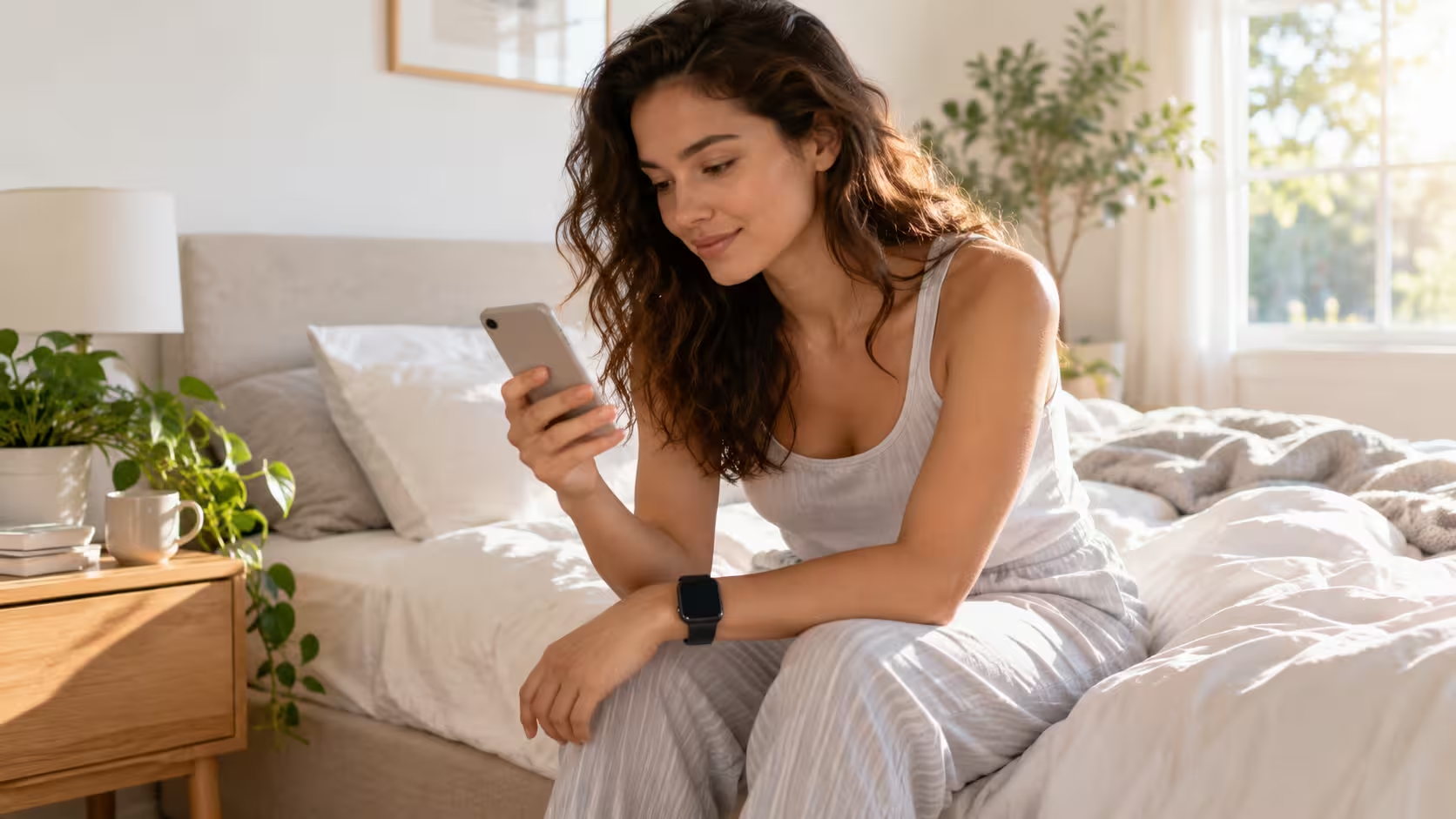

Tracking your sleep is one of the most useful health features available on an Apple Watch.
Instead of simply recording how many hours you spend in bed, it can estimate your sleeping patterns, identify different sleep stages and help you understand whether you are getting consistent rest.
To track sleep on Apple Watch, open the Watch app on your iPhone, select Sleep and enable Track Sleep with Apple Watch.
Wear your watch to bed with sufficient battery charge. The following morning, open the Sleep app on your watch or the Health app on your iPhone to review your results.
You can also set a bedtime schedule, monitor your Sleep Score and examine how much time you spend in REM, Core and Deep sleep.
This guide explains how to set everything up, what the results mean and how to solve common sleep-tracking problems.
What Do You Need to Track Sleep on Apple Watch?
Before setting up sleep tracking, check that your Apple Watch and iPhone are compatible and properly configured.
The main requirements are:
- Compatible Apple Watch: An Apple Watch running watchOS 8 or later can use Apple’s built-in sleep-tracking functionality, although available features differ by model and software version.
- Paired iPhone: Your Apple Watch should be paired with a compatible iPhone.
- Sleep Tracking enabled: The relevant setting must be switched on.
- Sufficient battery: Apple recommends charging your watch to at least 30% before bedtime.
- Proper fit: The watch should fit comfortably and securely around your wrist.
- Minimum tracking time: Apple advises wearing the watch for at least one hour to record sleep data.
You do not need to buy a separate sleep-tracking device or subscribe to a third-party application to use Apple’s built-in sleep features.
However, more recent features, such as Sleep Score and certain overnight health measurements, require compatible software or hardware.
How to Turn On Sleep Tracking on Apple Watch Using an iPhone?
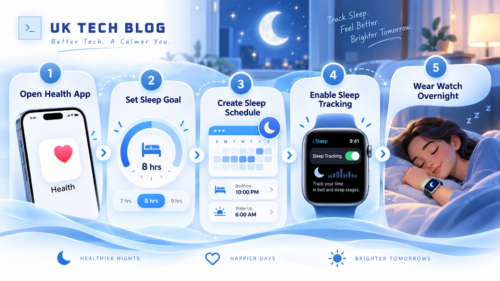
The easiest way to configure Apple Watch sleep tracking is through your paired iPhone.
Step 1: Open the Health App
Unlock your iPhone and open the Health app.
Navigate to Sleep using the Search or Browse section, depending on your iOS version.
If you have never configured sleep tracking, look for the Get Started option under Set Up Sleep.
Tap it to begin.
Step 2: Set Your Sleep Goal
Choose how many hours of sleep you would ideally like to get each night.
For example, you might set an eight-hour sleep goal.
This is a target rather than a measurement of how long you actually sleep.
Apple Watch will compare your recorded sleep duration with this goal when displaying your results.
Step 3: Create a Sleep Schedule
The next step is to choose your preferred bedtime and wake-up time.
For example:
| Sleep setting | Example |
| Bedtime | 11:00 PM |
| Wake-up time | 7:00 AM |
| Sleep goal | 8 hours |
| Active days | Monday to Friday |
| Wind Down | 30 minutes before bedtime |
You can create separate schedules for weekdays and weekends if your sleeping routine changes.
A recurring schedule is useful for building consistent habits, but newer Apple Watch software can also recognise sleep outside a scheduled period.
Step 4: Enable Track Sleep with Apple Watch
Open the Watch app on your iPhone.
Navigate to:
Watch App → My Watch → Sleep → Track Sleep with Apple Watch
Enable the sleep-tracking option if it is switched off.
On supported watchOS versions, you can also open Settings on the Apple Watch, select Sleep and enable Sleep Tracking.
This setting allows the watch to record sleep information and make it available in the Health app.
Step 5: Wear Your Apple Watch Overnight
Once sleep tracking is enabled, put on your Apple Watch before going to bed.
Make sure it is charged sufficiently and sits comfortably against your skin.
The watch uses motion-sensing technology and supported health sensors to estimate sleep patterns.
After waking up, your recorded sleep information should become available in the Sleep app and iPhone Health app.
Apple provides further instructions in its official guide to tracking sleep with Apple Watch.
How to Set Up Sleep Tracking Directly on Apple Watch?
You can also configure sleep tracking without navigating through the iPhone Health app.
Follow these steps:
- Press the Digital Crown to access your Apple Watch apps.
- Open the Sleep app.
- Follow the initial setup instructions if this is your first time using it.
- Choose your sleep goal and preferred bedtime and wake-up time if you want a recurring schedule.
- Adjust the available alarm and Wind Down settings.
- Open Settings on your Apple Watch and select Sleep.
- Make sure Sleep Tracking is enabled.
The exact screens differ slightly between watchOS versions.
Once configured, you can open the Sleep app to review your schedule, change an alarm or check your recent sleeping history.
Users who want convenient access to Sleep Score and other health information can also explore how to change an Apple Watch face and select a compatible face with useful complications.
Can Apple Watch Track Sleep Without a Sleep Schedule?
Yes. Modern Apple Watch software can detect sleep even when you have not created a fixed bedtime schedule.
Apple expanded automatic sleep detection with watchOS 11, allowing supported watches to recognise sleep sessions outside a scheduled period.
This is particularly useful for:
- Shift workers who sleep at different times.
- People with irregular work schedules.
- Users who take afternoon naps.
- Travellers adjusting to new time zones.
- People who prefer not to use bedtime alarms.
To use automatic tracking, keep Sleep Tracking enabled and wear the watch while sleeping.
Sleep Tracking and Sleep Focus are not the same feature.
Sleep Tracking records your sleeping activity, while Sleep Focus reduces interruptions and can activate a simplified display.
On newer software, a scheduled Sleep Focus is not required for basic automatic sleep detection. However, some features, including the Vitals app’s typical overnight measurements, have additional Sleep Focus requirements.
For users with regular bedtime routines, enabling Sleep Focus can still provide a more consistent nighttime experience.
How to Check Sleep Data on Apple Watch?
After sleeping with your watch, you can check your results directly on the device.
Follow these steps:
- Wake your Apple Watch.
- Press the Digital Crown.
- Open the Sleep app.
- Review your most recent sleep information.
- Scroll using the Digital Crown to explore sleep stages, duration and available trends.
Depending on your watchOS version, you may see your Sleep Score, time asleep and a breakdown of sleep stages.
The Sleep app also provides a summary of your sleeping patterns over the previous 14 days.
How to View Sleep Data on iPhone?
For a more detailed breakdown, use the Health app.
Open:
Health App → Browse or Search → Sleep
You can view your sleeping history using different chart periods.
| Chart option | Information displayed |
| D | Daily sleep information |
| W | Weekly sleep trends |
| M | Monthly sleep trends |
| 6M | Sleep history over six months |
Select Show More Sleep Data to explore additional measurements such as sleep stages and duration.
You may also be able to compare heart rate, respiratory rate and wrist temperature information, depending on your Apple Watch model.
What Do REM, Core and Deep Sleep Mean on Apple Watch?
Apple Watch does more than estimate total sleep duration. On compatible models, it separates sleep into different stages to provide a clearer picture of how your night was spent.
| Sleep stage | What it means | What Apple Watch displays |
| Awake | Periods when you are not sleeping | Estimated time awake during the sleep session |
| REM | A stage associated with dreaming and important cognitive processes | Estimated REM sleep duration |
| Core | Apple’s label for lighter non-REM sleep | Estimated time spent in Core sleep |
| Deep | A stage of slow-wave sleep associated with physical restoration | Estimated Deep sleep duration |
What Is REM Sleep?
REM stands for Rapid Eye Movement.
This sleep stage is associated with vivid dreams, memory processing and aspects of emotional regulation.
Your Apple Watch estimates when REM sleep occurs based on patterns detected by its sensors.
What Is Core Sleep?
Core sleep refers mainly to lighter non-REM sleep.
Although the term may sound less important than Deep sleep, lighter sleep forms a substantial part of a typical night’s rest.
Core sleep contributes to normal sleep continuity and transitions between different sleeping stages.
What Is Deep Sleep?
Deep sleep is a stage of non-REM sleep associated with slow brain-wave activity.
It contributes to physical recovery and other restorative processes.
The amount of Deep sleep varies between individuals and can change with age, sleeping patterns and other factors.
Important: Apple Watch sleep-stage measurements are estimates. They are not equivalent to measurements from a clinical sleep study, so a single unusual result should not be treated as a medical diagnosis.
How to Check Your Apple Watch Sleep Score?
Sleep Score is a feature introduced with watchOS 26 that provides a numerical summary of sleep quality.
Instead of making users interpret every sleep measurement separately, Apple combines several indicators into a score from 0 to 100.
The score considers three main factors:
| Sleep Score factor | Maximum points |
| Sleep duration | 50 |
| Bedtime consistency | 30 |
| Sleep interruptions | 20 |
| Total | 100 |
Sleep duration carries the greatest weight.
Bedtime consistency considers your recent sleeping pattern, while interruptions reflect periods of wakefulness.
What Is a Good Apple Watch Sleep Score?
Apple’s current scoring categories are:
| Sleep Score | Classification |
| 0–40 | Very Low |
| 41–60 | Low |
| 61–80 | OK |
| 81–95 | High |
| 96–100 | Very High |
For example, imagine your watch reports a Sleep Score of 78.
This falls within the OK category.
You might have slept for a reasonable amount of time but experienced an inconsistent bedtime or interruptions during the night.
The score breakdown helps explain which factors contributed to the result.
However, a high Sleep Score does not guarantee that someone has no underlying sleep-related health problem.
Where Can You Find Sleep Score?
On Apple Watch:
- Open the Sleep app.
- Find your latest Sleep Score.
- Tap the information icon to explore the available breakdown.
On iPhone:
- Open the Health app.
- Navigate to Sleep.
- Select Sleep Score to review your results.
Does Apple Watch Automatically Track Naps?
Yes. Supported Apple Watch models running recent watchOS versions can automatically recognise certain daytime sleep sessions.
Automatic nap detection became available with watchOS 11.
For example, someone who works overnight may sleep during the afternoon instead of following a traditional nighttime schedule.
A compatible Apple Watch can recognise this sleeping activity without requiring a separate scheduled bedtime.
However, short sleep sessions are not always presented with the same level of detail as a full night’s rest.
Apple’s documented sleep-detection approach distinguishes shorter sessions from longer sleep periods. Detected sessions lasting approximately one to three hours may be recorded as sleep and wake data, while sessions exceeding three hours can provide a full sleep-stage classification.
Very short naps may not be recorded.
This makes automatic detection useful for identifying sleeping patterns, although it should not be regarded as a precise record of every minute spent asleep.
Which Apple Watch Models Support Sleep Tracking?
Sleep-tracking capabilities depend on the Apple Watch model and the watchOS version it supports.
| Feature | General software requirement |
| Basic built-in sleep tracking | watchOS 8 or later |
| REM, Core and Deep sleep stages | watchOS 9 or later |
| Automatic sleep detection outside scheduled sleep | watchOS 11 or later |
| Apple Sleep Score | watchOS 26 or later |
| Sleep apnoea notifications | Compatible newer Apple Watch models, with regional and eligibility requirements |
In 2026, watchOS 27 supports Apple Watch Series 9 and later, Apple Watch SE 3 and Apple Watch Ultra 2 and later.
Older watches may still track sleep using their latest supported watchOS version.
For example, Apple Watch Series 6, Series 7, Series 8, Apple Watch SE 2 and the original Ultra can support many advanced sleep features on watchOS 26, even though they cannot upgrade to watchOS 27.
You do not necessarily need the newest Apple Watch to receive useful sleep information.
The important factor is whether the device supports the specific feature you want to use.
Why Is Apple Watch Not Tracking Sleep?
Sometimes the Sleep app shows incomplete information, missing sleep stages or no recorded data.
Several common issues can cause these problems.
1. Sleep Tracking Is Turned Off
Open the Apple Watch Settings app, select Sleep and check that Sleep Tracking is enabled.
You can also inspect the Sleep settings in the Watch app on your paired iPhone.
Without this setting, the watch may not record the expected sleep measurements.
2. The Apple Watch Battery Is Too Low
Apple recommends starting the night with at least 30% battery charge.
If the watch runs out of power overnight, sleep information may be incomplete or missing.
Enable Charging Reminders so your watch can notify you when it needs charging before bedtime.
3. The Watch Is Too Loose
A watch that moves excessively or does not sit properly against your wrist can affect sensor readings.
Adjust the strap so it remains secure without becoming uncomfortable.
Avoid wearing the band excessively tight.
4. You Did Not Wear the Watch Long Enough
Apple recommends wearing the watch for at least one hour to collect sleep data.
Very short sleep sessions might not produce usable results.
In addition, complete sleep-stage information may require a longer detected sleep session.
5. Your Software Is Outdated
Older versions of watchOS may not support newer sleep-tracking functionality.
Check for available updates through the Watch app on your iPhone.
Remember that the latest watchOS release may not be compatible with every Apple Watch model.
6. Sleep Data Has Not Appeared in the Health App
If your data is not immediately visible, check that the watch is connected to its paired iPhone.
Open the Health app and inspect the Sleep section.
Confirm that the Apple Watch is recording health data under the expected device.
If the problem continues, restart the Apple Watch and iPhone before attempting more disruptive troubleshooting.
A factory reset should generally be a last resort. For persistent software problems, understanding how to reset an Apple Watch can help distinguish between a normal restart, force restart and complete device erasure.
How Accurate Is Apple Watch Sleep Tracking?
Apple Watch can provide useful estimates of sleep duration, sleeping patterns and the different stages of sleep.
Its motion sensors detect physical movements that are associated with sleeping and waking.
Supported health sensors can also contribute additional information, such as heart rate and respiratory rate.
However, the watch cannot measure every aspect of sleep with the same precision as laboratory equipment.
In a clinical sleep study, specialists may use electroencephalography and other instruments to monitor brain activity, eye movements, muscle activity and breathing.
Apple Watch uses algorithms to infer sleep stages rather than directly measuring brain waves.
For everyday users, its greatest value is often identifying longer-term patterns.
For example, consistently sleeping for less time than intended or having highly irregular bedtime routines may be more informative than focusing on a single night’s Deep sleep estimate.
Can Apple Watch Detect Sleep Apnoea?
Some newer Apple Watch models support notifications relating to possible sleep apnoea.
The feature analyses breathing disturbances detected through wrist movements during sleep.
Eligible models include Apple Watch Series 9 and later, Apple Watch Ultra 2 and later, and Apple Watch SE 3, subject to software and regional availability.
Users generally need to wear a compatible watch to sleep for at least 10 nights during a 30-day evaluation period.
The feature is intended for adults aged 18 and over who have not already been diagnosed with sleep apnoea.
How to Enable Sleep Apnoea Notifications
- Open the Health app on your iPhone.
- Navigate to the Respiratory section.
- Find Sleep Apnoea Notifications.
- Tap Set Up.
- Follow the eligibility and setup instructions.
Apple explains the eligibility requirements in its official sleep apnoea notifications guidance.
These notifications cannot diagnose sleep apnoea, and not receiving a notification does not rule out the condition. Anyone concerned about symptoms such as repeated breathing interruptions or excessive daytime sleepiness should seek medical advice.
How to Improve Apple Watch Sleep Tracking Results?
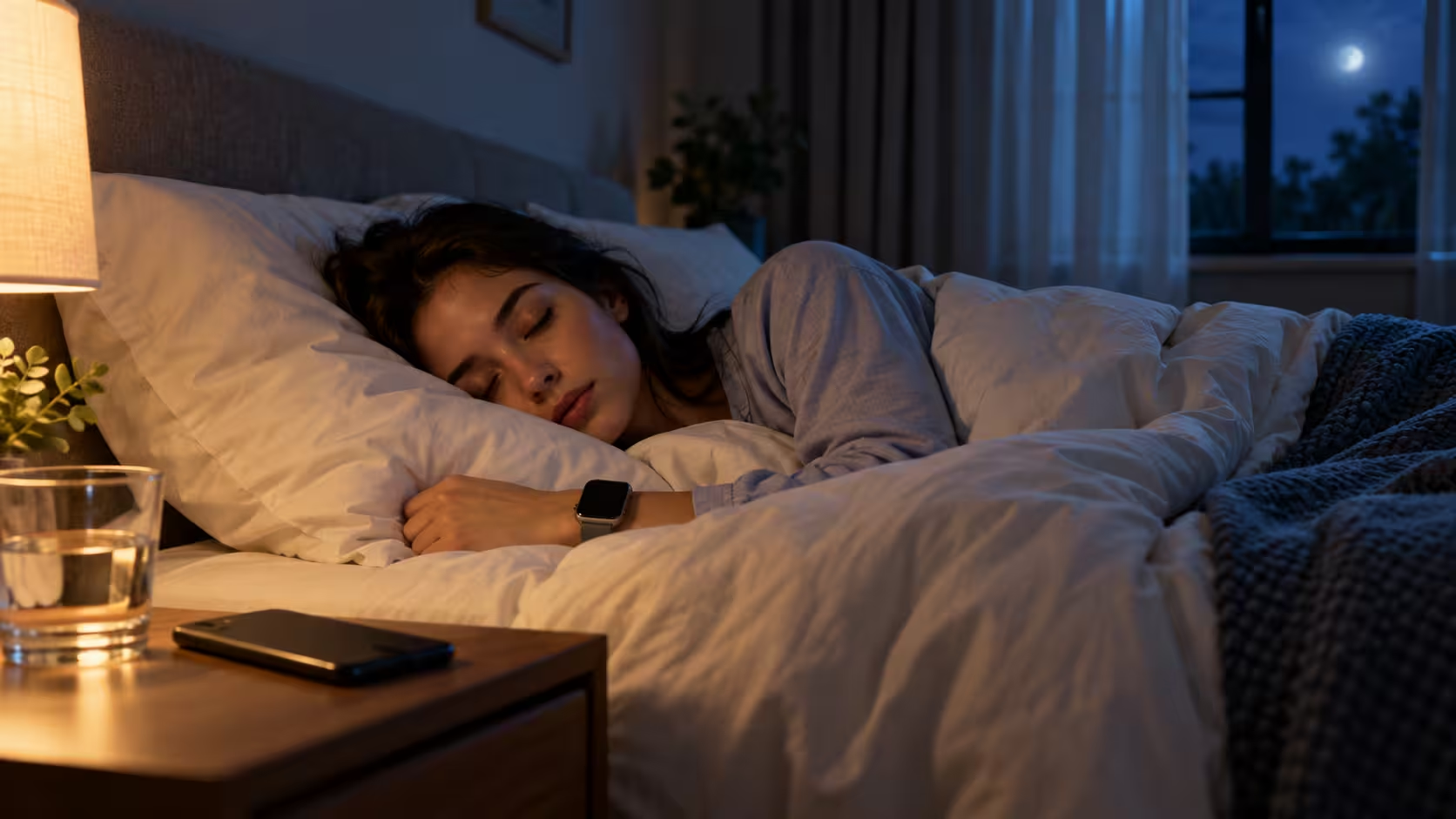
Good sleep-tracking results depend on both proper device setup and consistent use.
A few practical habits can make your information more useful.
Charge the watch before bedtime. Build a charging routine around a time when you are not relying on the device, such as while getting ready for bed.
Wear the watch consistently. Using the same watch over multiple nights makes it easier to compare sleep trends.
Maintain a comfortable fit. A secure strap helps sensors capture the information they need.
Consider using Sleep Focus. This reduces unnecessary nighttime notifications and can support a more consistent bedtime routine.
Review weekly rather than daily trends alone. A single poor night does not necessarily represent your typical sleeping pattern.
Compare sleep duration with your daytime experience. Sleep data is more meaningful when considered alongside how rested and alert you feel.
The goal is not to achieve a perfect score every night. It is to identify habits and trends that could support better sleep over time.
Frequently Asked Questions
Does Apple Watch Track Sleep Automatically?
Yes. With Sleep Tracking enabled, compatible Apple Watches running recent watchOS versions can recognise sleep automatically, including some sessions outside a fixed schedule.
Do You Need Sleep Focus to Track Sleep on Apple Watch?
Not for basic automatic sleep detection on supported recent watchOS versions. However, Sleep Focus remains useful for reducing interruptions and is required for some additional overnight health features.
Can Apple Watch Track Sleep Without an iPhone Nearby?
Yes. Once it has been paired and configured, Apple Watch can collect supported sleep measurements without the iPhone being next to your bed. The information can synchronise with the Health app when the devices reconnect.
How Much Battery Do You Need to Track Sleep?
Apple recommends having at least 30% battery charge before bedtime. The actual amount consumed overnight depends on the model, battery condition and enabled features.
Can Apple Watch Track Deep Sleep?
Yes. Compatible watches running watchOS 9 or later can estimate time spent in Deep, REM and Core sleep.
Why Is My Apple Watch Not Showing Sleep Stages?
Possible causes include unsupported software, a short sleeping session, insufficient recorded data or interrupted tracking. Check Sleep Tracking settings, battery level and watchOS compatibility.
Can Apple Watch Track Sleep Without a Subscription?
Yes. Apple’s built-in Sleep app and Health app provide sleep-tracking functionality without requiring a separate paid subscription.
Is Apple Watch Sleep Score Available on Older Models?
Sleep Score is available on compatible devices running watchOS 26 or later. Some older models that cannot install watchOS 27 can still use Sleep Score on watchOS 26.