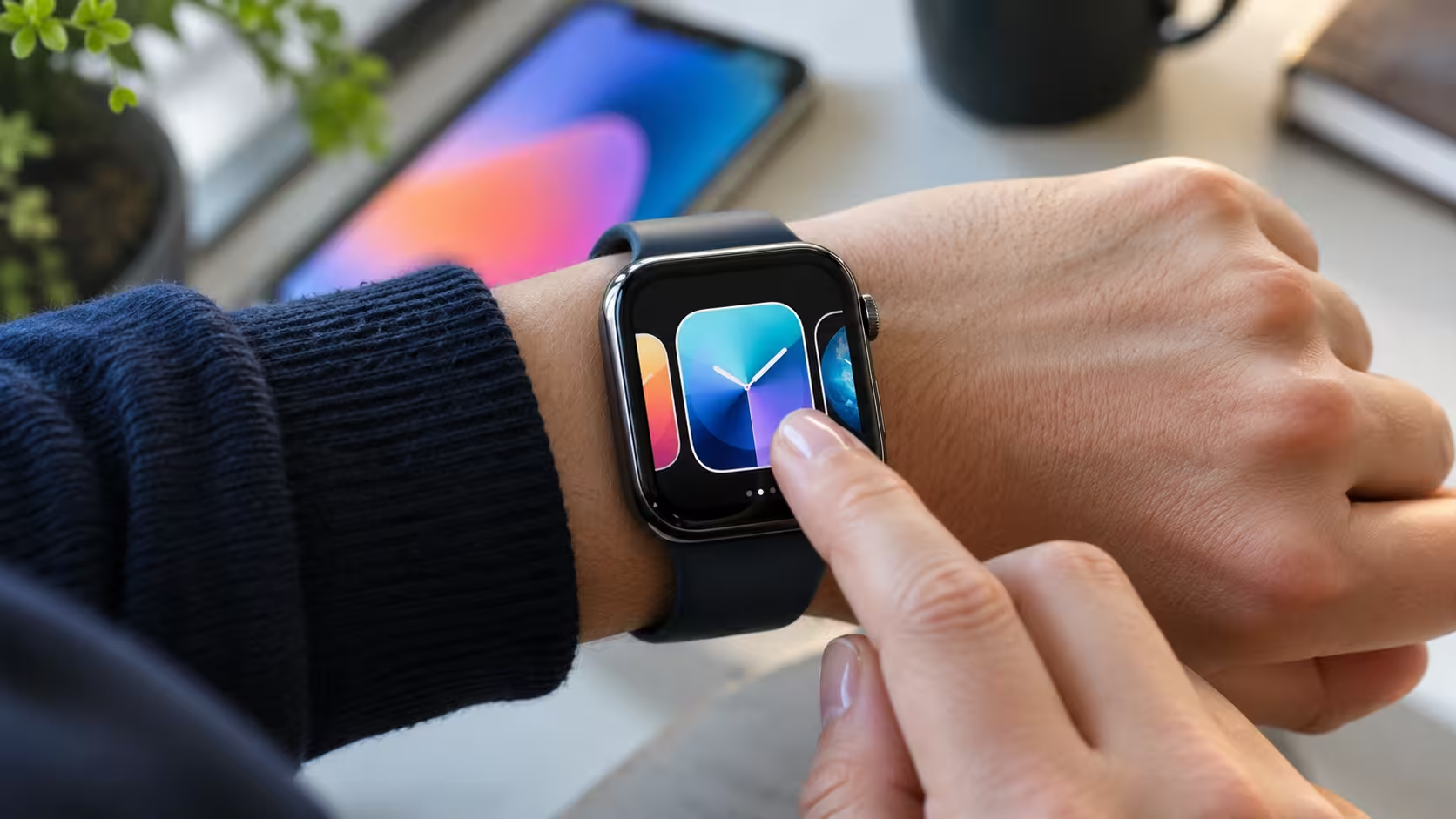

Changing an Apple Watch face is one of the easiest ways to personalise a smartwatch without installing additional software.
Users can switch between digital and analogue designs, display personal photographs, adjust colours and add useful information such as weather conditions, activity progress and calendar events.
To change an Apple Watch face, touch and hold the current watch face, swipe left or right to find another saved design, and tap it to apply it. New designs can also be added through the Face Gallery in the Apple Watch app on a paired iPhone.
With watchOS 27 introducing new functionality for supported devices, understanding how watch faces work is particularly useful for now. This guide explains how to change, customise, organise and automatically switch Apple Watch faces, including solutions for common problems.
How to Change Apple Watch Face Directly on the Watch?
The quickest way to change an Apple Watch face is directly from the watch screen. This method works when the preferred design has already been added to the user’s collection.
Follow these steps:
- Wake the Apple Watch by raising the wrist or tapping the display.
- Make sure the current watch face is visible.
- Touch and hold the watch face until the face selection screen appears.
- Swipe left or right to browse the saved watch faces.
- Tap the preferred face to activate it.
The selected design becomes the active watch face immediately.
This method does not require the paired iPhone to be nearby because the saved faces are already available on the watch.
How to Swipe Between Apple Watch Faces Without Long-Pressing?
Users who regularly switch between designs can enable swipe-to-switch functionality.
To activate it:
- Open Settings on the Apple Watch.
- Select Clock.
- Enable Swipe to Switch Watch Face.
- Return to the watch face.
- Swipe left or right to switch between saved faces.
This is especially helpful for anyone who maintains separate faces for work, exercise and personal use.
If swiping does not change the face, check whether the feature is enabled. On newer watchOS versions, direct swiping may not work until this setting has been activated.
How to Change Apple Watch Face Using an iPhone?
The Apple Watch app on iPhone offers a larger interface for exploring and customising watch faces.
It is particularly useful when adjusting several complications or comparing different layouts before applying a design.
To change the Apple Watch face using an iPhone:
- Open the Apple Watch app on the paired iPhone.
- Tap Face Gallery.
- Browse the available watch face collections.
- Select a preferred design.
- Tap Get if shown, then select the available option.
- Adjust the colour, style and complications.
- Tap Add to Watch.
The new watch face is added to the collection and becomes the active design.
Users can also open the My Watch tab to view faces they have already saved. The Face Gallery groups designs into categories, making it easier to explore alternatives without scrolling through every available option.
For the complete manufacturer instructions, Apple provides an official Apple Watch face customisation guide.
How to Add a New Apple Watch Face Without an iPhone?
An iPhone is not necessary when adding a supported watch face directly from the Apple Watch.
To add a new face:
- Touch and hold the current watch face.
- Swipe left until the Add button appears.
- Tap the plus (+) symbol.
- Browse the available collections.
- Select the preferred design and tap Get.
- Tap Add to include it in the collection.
- Customise the face if required.
Users can return to the face selection screen whenever they want to use another design.
The available collection depends on the Apple Watch model and its installed watchOS version.
How to Customise an Apple Watch Face?
Changing a watch face does not mean users must accept its default appearance.
Many designs support personalisation, including different colours, dial styles, complications and display arrangements.
To customise an existing face:
- Touch and hold the watch face.
- Tap Edit.
- Swipe between the available customisation screens.
- Turn the Digital Crown to adjust supported options.
- Select available complication positions.
- Press the Digital Crown to save the changes.
- Tap the watch face to return to it.
The exact options differ according to the selected face.
How to Change Apple Watch Face Colour?
Colour customisation can make a watch face easier to read or better suited to the owner’s personal style.
For supported faces:
- Open the watch face editing screen.
- Navigate to the colour customisation option.
- Turn the Digital Crown to browse available colours.
- Select the preferred colour.
- Press the Digital Crown to save.
Some faces offer a wide range of colour choices, while others have fixed visual designs.
How to Add Complications to an Apple Watch Face?
Complications are small pieces of information or app shortcuts displayed directly on compatible watch faces.
For example, a complication might show the current temperature, battery level, heart rate or next calendar appointment.
To add or change a complication:
- Touch and hold the watch face.
- Select Edit.
- Swipe left until the complication editing screen appears.
- Tap the complication position to change.
- Turn the Digital Crown to browse available options.
- Select the preferred complication.
- Press the Digital Crown to save.
Not every watch face supports the same complications.
For example, a minimalist design may provide fewer information slots than a Modular-style face.
Practical tip: Choose complications based on information that is genuinely useful throughout the day rather than filling every available position.
A frequently used weather or calendar complication may be more valuable than several shortcuts that rarely get opened.
How to Change Apple Watch Face to a Photo?
The Photos watch face allows owners to display pictures from their iPhone photo library.
Personal photographs, family pictures, pets and travel memories can all be used to make the watch feel more individual.
To create a photo watch face:
- Open the Apple Watch app on the iPhone.
- Select Face Gallery.
- Tap Photos.
- Choose an available photo style.
- Select photos manually or choose a shuffle option.
- Adjust the available display settings.
- Tap Add to apply the face.
Apple’s Photos face supports manually selecting up to 24 images. When using supported automatic shuffle options, the selected photographs can change as the wearer raises their wrist or taps the display.
How to Set One Specific Photo as an Apple Watch Face?
Users who prefer one particular image rather than a changing collection can select it manually.
Open the Photos face settings in the Apple Watch app, choose the manual photo selection option and select the preferred image.
After applying the face, check how the photograph appears behind the clock.
Images with uncluttered backgrounds often provide better visibility, particularly when the photograph and clock numerals have similar colours.
Why Are Photos Not Showing on the Apple Watch Face?
A photo watch face may not display the expected images if the selected collection is unavailable or has not synchronised correctly.
Check that:
- The desired photos are still available on the paired iPhone.
- The correct album or photo collection is selected.
- The iPhone and Apple Watch are connected.
- The Apple Watch has completed its photo synchronisation.
- The watch face has been configured with the intended photos.
Users concerned about which personal pictures appear on their devices should also understand how private hidden iPhone photos really are, particularly before selecting photographs for a visible watch face.
How to Change Apple Watch Face Automatically?
Apple Watch faces do not have to be changed manually every time.
Users can associate specific watch faces with Focus modes so that the watch displays a different layout when a particular Focus becomes active.
For example, a user could create a work-focused watch face that shows appointments and reminders, while another design prioritises personal information during the evening.
How to Automatically Change Apple Watch Face Using Focus?
To link a face to a Focus mode:
- Open Settings on the paired iPhone.
- Select Focus.
- Choose Work, Personal or another Focus.
- Scroll to Customise Screens.
- Tap Choose beneath the Apple Watch preview.
- Select the preferred watch face.
- Tap Done.
Once configured, the chosen face becomes active when that Focus is enabled.
Users can also create a schedule for a Focus by selecting Add Schedule within its settings.
For instance, a Work Focus can be scheduled for weekdays, allowing the associated watch face to appear during working hours.
This provides a convenient method of changing the watch face automatically without having to navigate through the watch face collection several times a day.
What Are the New Apple Watch Face Features in watchOS 27?
Apple introduced watchOS 27 in September 2026, alongside its latest Apple Watch hardware.
Although the basic method for changing watch faces remains familiar, newer models offer additional features that can make watch face customisation more useful.
Siri Modular Watch Face
The Siri Modular face is designed to provide convenient access to Apple’s newer Siri AI functionality on compatible devices.
It may appeal to users who rely on Siri throughout the day and want faster access from the watch face.
Availability depends on supported hardware, software, language and regional requirements.
New Steps and Heart Rate Complications
Apple Watch Series 12 introduces additional options for displaying activity and health information.
These include:
- Steps complication: Displays step-count information directly on a compatible watch face.
- Heart Rate complication: Provides convenient access to heart rate information.
- Activity-related information: Helps users monitor progress without repeatedly opening separate applications.
In Apple’s official September 2026 announcement, Kaiann Drance, Apple’s vice president of Worldwide Apple Watch Product Marketing, described Series 12 as:
“the most advanced health and fitness companion we’ve ever created”
Her statement accompanied Apple’s introduction of its improved health sensing capabilities and more accessible daily health information.
The practical implication for watch face customisation is that users of compatible models can prioritise useful health and activity information rather than choosing a design solely for its appearance.
Apple explains these features in its official Apple Watch Series 12 announcement.
Not every complication is available on older devices, and some features require particular hardware or regional support.
Which Apple Watch Face Is Best for Everyday Use?
The most suitable watch face depends on whether the owner values appearance, convenience or access to information.
Rather than looking for one universal design, consider different faces for different activities.
| Watch face | Suitable for | Main advantage |
| Modular | Work and productivity | Multiple information positions |
| Photos | Personalisation | Displays favourite images |
| California | Everyday wear | Traditional watch appearance |
| Activity Digital | Fitness tracking | Highlights activity progress |
| Infograph | Information-rich layouts | Several complications |
| Flow | Minimalist appearance | Distinctive Liquid Glass design |
| Siri Modular | Compatible Siri AI use | Convenient access to Siri features |
Availability and customisation options may vary by model and watchOS version.
A useful setup is to save two or three faces for different purposes rather than trying to place every function on one design.
For example, a work face could display the next appointment, weather and battery level, while a fitness face could prioritise Activity and Workout information.
Why Can’t You Change Your Apple Watch Face?
Problems changing an Apple Watch face are often related to navigation settings, software compatibility, synchronisation or an unresponsive display.
Identifying the specific issue is more effective than immediately resetting the device.
1. Apple Watch Face Won’t Change When Swiping
If swiping left or right does not change the face, the swipe-to-switch option may be disabled.
Open Settings, select Clock and check whether Swipe to Switch Watch Face is enabled.
Alternatively, touch and hold the existing watch face before browsing saved designs.
2. New Apple Watch Faces Are Missing
Not every watch face is compatible with every Apple Watch.
A missing design may be caused by an older watchOS version, unsupported hardware or regional restrictions.
Check for available software updates and review the Face Gallery for designs supported by the particular model.
3. Watch Face Is Not Syncing From iPhone
If a newly added watch face is not appearing:
- Keep the paired iPhone and Apple Watch close together.
- Check that Bluetooth and Wi-Fi connectivity are functioning.
- Open the Apple Watch app again.
- Confirm that the face appears in My Faces.
- Restart both devices if necessary.
- Try adding the watch face again.
A temporary connection issue can sometimes delay changes appearing on the watch.
4. Apple Watch Screen Is Not Responding
If the display is frozen, the normal face selection gesture may not work.
Try restarting the watch before considering more disruptive troubleshooting.
A factory reset should not be the first solution because it erases data and settings.
For more persistent problems, follow the appropriate steps for resetting an Apple Watch safely and understand the difference between restarting, force restarting and completely erasing the device.
How to Delete or Rearrange Apple Watch Faces?
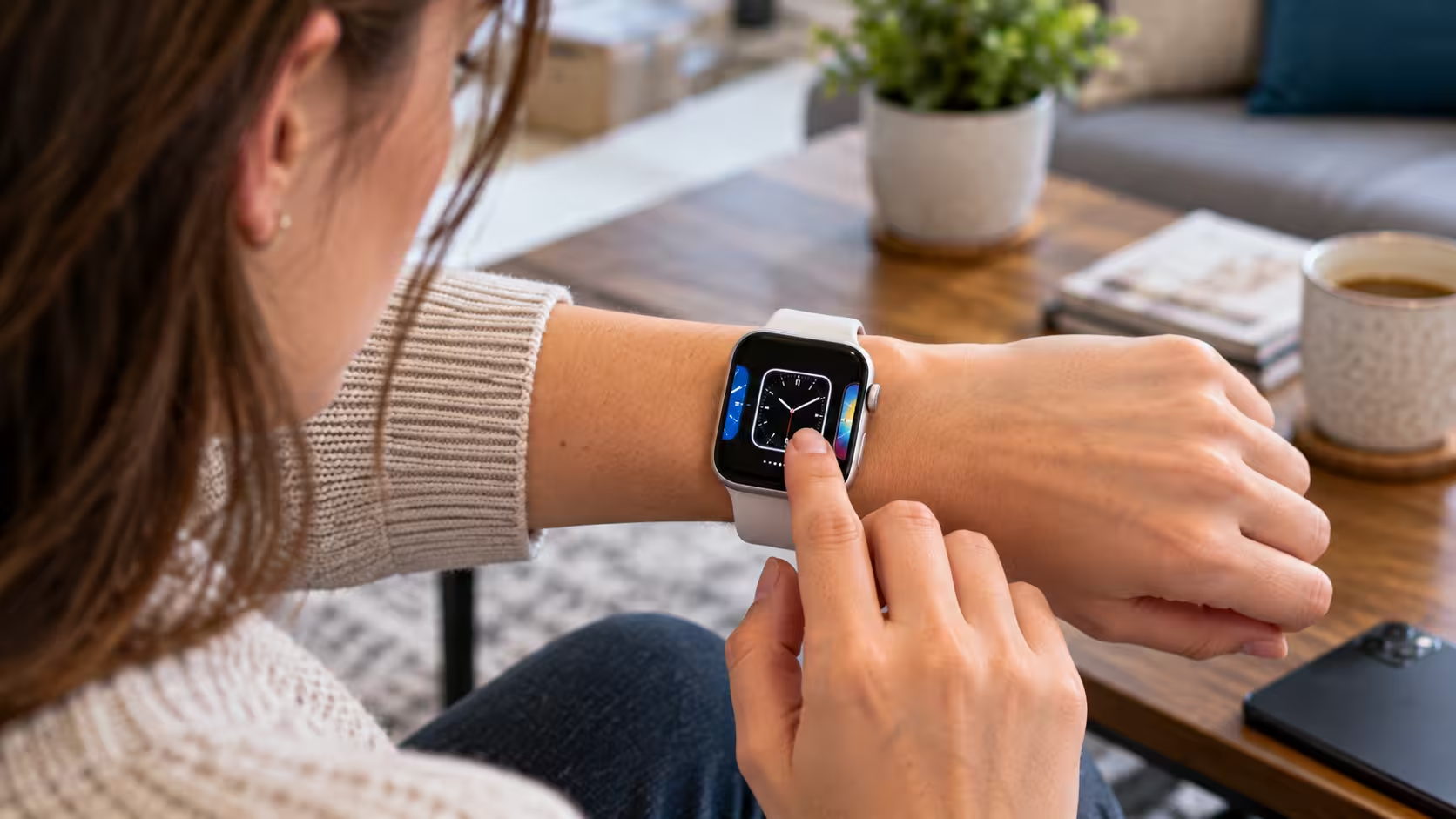
An Apple Watch can store multiple face designs, but maintaining a smaller collection makes switching between them easier.
How to Delete an Apple Watch Face?
To remove an unwanted design:
- Touch and hold the current watch face.
- Swipe to the face that should be removed.
- Swipe upwards on that face.
- Tap Remove.
Removing a saved watch face does not uninstall watchOS or permanently eliminate the design from Apple’s gallery.
It can be added again later if it remains available for the device.
How to Rearrange Saved Watch Faces?
Owners can also change the order in which their saved faces appear.
On the Apple Watch, touch and hold the current face, then touch and hold the selected face again. Drag it into the preferred position.
Alternatively, open the Apple Watch app on the iPhone, go to My Watch and use Edit in the My Faces section to rearrange the collection.
Positioning frequently used faces beside one another can make daily switching more convenient.
Can You Download Custom Apple Watch Faces From Third-Party Apps?
Third-party applications can offer curated designs, shared watch face configurations and compatible complications.
However, these should not be confused with installing an unrestricted, entirely new native watchOS face.
Apple controls the native watch face system, and third-party applications generally work within the supported face-sharing and customisation options.
Before installing a watch face app, check whether:
- The app supports the current Apple Watch model.
- A subscription is required.
- The design depends on another application.
- Additional permissions are requested.
- The selected complications are compatible with the device.
A downloaded design may not reproduce every advertised feature if the required applications are missing.
Apple also supports sharing compatible watch faces through Messages, Mail and links. Users receiving a shared face can add it to their collection, subject to device and software compatibility.
Frequently Asked Questions
Can You Change Apple Watch Face Without an iPhone?
Yes. Touch and hold the current watch face, browse the saved designs and tap the preferred face. New supported designs can also be added directly from the watch.
How Do You Change Apple Watch Face on Series 10 or Series 11?
Touch and hold the current face, swipe between available designs and select one. The same basic method applies to compatible models using recent watchOS versions.
Can You Put Your Own Picture on an Apple Watch Face?
Yes. Open Face Gallery in the Apple Watch app, choose Photos and select the pictures to display. Users can select a specific photo or configure a supported shuffle option.
Why Is My Apple Watch Not Letting Me Swipe Between Faces?
Direct swiping may be disabled. Check Settings > Clock > Swipe to Switch Watch Face, or touch and hold the current face before swiping between saved designs.
Can Apple Watch Faces Change Automatically at Different Times?
Yes. Users can associate a face with a Focus mode and schedule that Focus to activate at particular times. The watch displays the linked face when the Focus becomes active.
Can You Get More Apple Watch Faces for Free?
Yes. Apple provides a range of built-in watch faces through its Face Gallery without additional purchases. Some third-party apps also provide free designs, although others require payment.
Does Changing Apple Watch Face Affect Battery Life?
It can affect battery consumption depending on the design, animations, display behaviour and complications being used. However, the actual impact varies with the Apple Watch model, settings and usage.