

Your Apple ID password protects access to important information stored across Apple’s ecosystem, including iCloud Photos, contacts, backups, purchases and connected devices.
Whether you have forgotten your password, suspect someone else knows it or simply want to improve your account security, changing it is straightforward when you have access to a trusted Apple device.
To change your Apple ID password on an iPhone, open Settings > Your Name > Sign-In & Security > Change Password. Verify your identity and follow the instructions to create a new password.
However, the process can be different if you no longer have your iPhone, have forgotten your existing password or encounter a security delay.
This guide explains the available methods, common password problems and the steps needed to keep your Apple Account secure after updating your credentials.
What Is an Apple ID Password?
An Apple ID password is the security credential used to access your Apple Account and its associated Apple services.
Although Apple now uses the name Apple Account, many users still refer to it as Apple ID. Both names describe the same account.
Your password helps protect services such as:
- iCloud storage and backups
- Apple Photos and synchronised data
- App Store purchases and subscriptions
- iMessage and FaceTime
- Apple Music
- Find My and connected Apple devices
- Apple Account information and security settings
It is important to understand that your Apple ID password is different from the passcode used to unlock your iPhone.
| Password type | Main purpose |
| Apple ID password | Accesses your Apple Account and Apple services |
| iPhone passcode | Unlocks your iPhone and authorises certain device operations |
| Mac login password | Unlocks your Mac user account |
| iCloud password | The same password used for your Apple Account |
| App-specific password | Allows certain third-party apps to access Apple Account services |
Changing your Apple ID password does not automatically change your iPhone passcode or Mac login password.
How to Change Apple ID Password on iPhone or iPad?
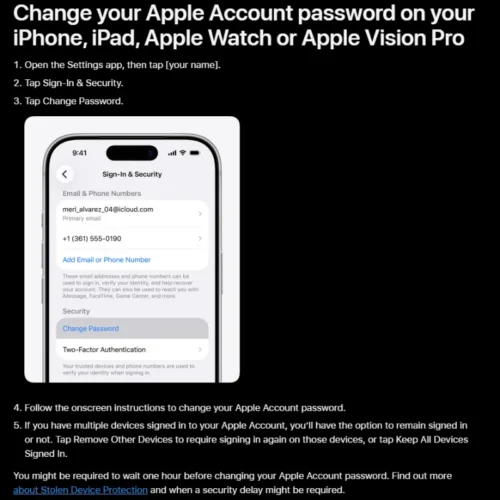
Apple’s official instructions for changing an Apple ID password through iPhone or iPad settings.
The easiest way to update your Apple ID password is through an iPhone or iPad already signed in to your Apple Account.
This method works on compatible devices using recent iOS and iPadOS versions.
Step 1: Open Settings
Unlock your iPhone or iPad and open the Settings app.
At the top of the screen, tap your name or Apple Account profile.
If your name does not appear, the device may not currently be signed in to your Apple Account.
Step 2: Open Sign-In & Security
Inside your Apple Account settings, select Sign-In & Security.
This section manages important account details, including passwords, trusted phone numbers and account recovery options.
On older iOS versions, this menu may be called Password & Security.
Step 3: Select Change Password
Tap Change Password.
Your iPhone may ask you to enter the device passcode or complete another identity verification step.
This is a security measure intended to prevent unauthorised account changes.
Step 4: Enter Your New Password
Follow the instructions displayed on your device.
Depending on your account settings and verification method, you may be able to create a new password without manually entering your previous Apple ID password.
Choose a strong password that is different from passwords used for other services.
Step 5: Confirm the Password Change
Complete the remaining verification and confirmation steps.
If Apple offers a choice about other signed-in devices, carefully review the available options before continuing.
Step 6: Review Your Connected Devices
After updating your password, you may be offered the following choices:
- Remove Other Devices: Requires other devices to sign in again.
- Keep All Devices Signed In: Allows existing device sessions to remain signed in where supported.
If you suspect someone has accessed your account without permission, requiring other devices to authenticate again is generally the safer choice.
If you are simply updating your password and recognise every connected device, keeping them signed in may be more convenient.
How to Change Apple ID Password on Mac?
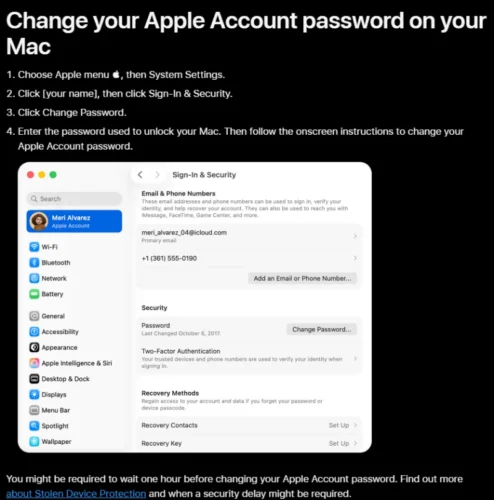
Apple’s official guidance for updating an Apple Account password on a Mac.
You can also change your Apple Account password using a MacBook, iMac, Mac mini or another compatible Mac already signed in to your account.
The process is similar to changing the password on an iPhone.
Step 1: Open System Settings
Click the Apple menu in the upper-left corner of your Mac screen.
Select System Settings.
Step 2: Select Your Apple Account
Click your name in the System Settings sidebar.
This opens the account management options associated with your Mac.
Step 3: Go to Sign-In & Security
Select Sign-In & Security and click Change Password.
Step 4: Verify Your Identity
Apple may ask for the password you normally use to unlock your Mac.
Enter your Mac login password to continue.
Remember that your Mac login password and Apple Account password are separate credentials.
Step 5: Create a New Password
Follow the displayed instructions to enter and confirm your replacement Apple Account password.
Finish the process and review any additional security prompts.
For users running substantially older versions of macOS, the wording and menu locations may differ. The equivalent settings may be found in System Preferences.
How to Change Apple ID Password on a Web Browser?
You may be able to change your Apple Account password using an internet browser on a Windows laptop, desktop computer or another device.
However, Apple increasingly prioritises trusted devices for sensitive account changes.
Steps to Change Apple ID Password Online
- Visit the official Apple Account website.
- Sign in using your Apple Account email address or associated phone number and password.
- Complete any requested two-factor authentication checks.
- Open Sign-In and Security.
- Select Password.
- Follow the displayed instructions to update your password.
Apple may redirect you to a trusted device to complete the process.
This means the website does not necessarily offer a direct browser-based password change for every account.
If you cannot remember your password, the account recovery process described below is more appropriate.
Security reminder: Only enter your Apple Account credentials on official Apple websites or authorised Apple device interfaces. Avoid password-reset links received through unexpected messages or unfamiliar websites.
How to Change Apple ID Password If You Forgot It?
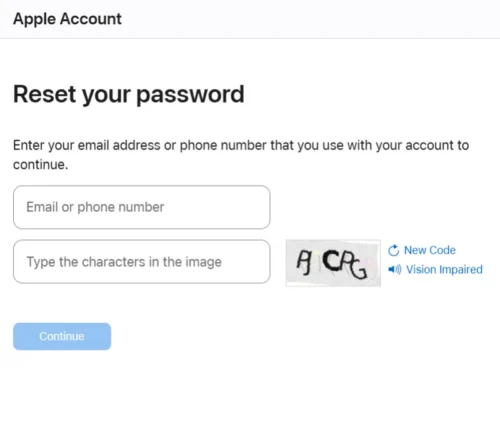
Apple’s official password recovery website helps users reset a forgotten Apple ID password.
Forgetting your Apple ID password does not necessarily mean losing access to your account.
Apple offers several recovery methods depending on which trusted devices, phone numbers and recovery options you can still access.
Method 1: Reset Your Password Using a Trusted Device
If you have forgotten your password but are still signed in on your iPhone, iPad or Mac, try changing the password through that device.
On an iPhone:
- Open Settings.
- Tap your name.
- Select Sign-In & Security.
- Tap Change Password.
- Complete the device verification process.
- Enter your new password when prompted.
This is generally the quickest recovery method because your existing trusted device can help Apple confirm your identity.
You may not need to remember your previous Apple ID password.
Method 2: Reset Your Password Through Apple’s Recovery Website
If a trusted device is unavailable, visit iforgot.apple.com.
The website guides you through the available password recovery options.
You may need to provide your Apple Account email address or associated phone number and complete additional identity verification.
Depending on your security configuration, Apple may ask you to use a trusted phone number, another trusted device or an existing recovery method.
If the required verification is successful, you may be able to set a new password.
Otherwise, Apple may direct you to account recovery.
Method 3: Use the Apple Support App on a Borrowed Device
If you no longer have your own trusted Apple device, the Apple Support app may provide another recovery option.
You can use a trusted friend or family member’s iPhone or iPad, or seek assistance at an Apple Store.
To get started:
- Open the Apple Support app on the borrowed device.
- Scroll to Support Tools.
- Select Reset Password.
- Choose Help Someone Else.
- Enter your Apple Account information when requested.
- Follow the instructions to verify your identity and attempt a password reset.
Apple states that the account information entered through this process is not stored on the borrowed device.
This option is particularly useful when your own iPhone is lost, damaged or unavailable.
Do not sign the borrowed device into your personal Apple Account through its main Settings app merely to attempt recovery.
How to Change Apple ID Password Without an iPhone or Trusted Device?
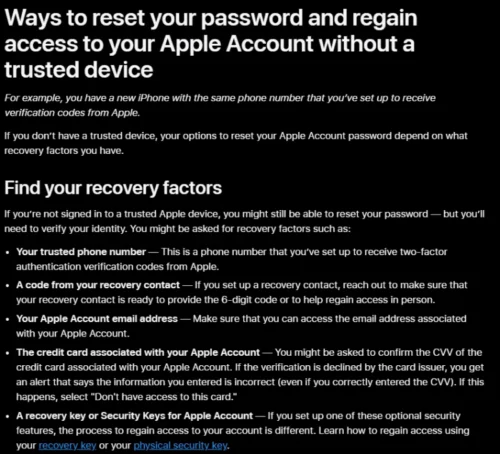
Apple explains the recovery methods available when users cannot access their trusted devices
Changing your password without access to a trusted Apple device may require additional identity verification.
The available method depends on which recovery factors are associated with your Apple Account.
If You Still Have Your Trusted Phone Number
A trusted phone number may help you receive verification codes during the reset process.
Visit iforgot.apple.com or use the Apple Support app and follow the instructions.
Having access to your trusted number can improve your recovery options, but receiving a text message alone does not guarantee that Apple will allow an immediate reset.
If You Have an Account Recovery Contact
Apple allows users to nominate trusted individuals who can help with account recovery.
If you previously configured a recovery contact, that person may be able to provide a six-digit recovery code.
The recovery contact cannot access your personal Apple Account information or reset your password independently.
They can only assist with verification when you initiate the recovery process.
If You Cannot Access Any Recovery Method
You may need to request formal account recovery.
Apple uses this process when immediate identity verification is not possible.
Recovery can take several days or longer, depending on your circumstances.
Apple cannot necessarily shorten the waiting period through customer support.
An important detail is that using devices signed in to your account during certain recovery procedures can cancel the request. Follow the specific instructions Apple provides after starting recovery.
If you previously enabled an Apple Account Recovery Key or physical security keys, those settings may change the available recovery methods. Follow the instructions applicable to your account rather than assuming standard recovery is always available.
How to Change a Child’s Apple ID Password Through Family Sharing?
Parents and guardians managing a child’s Apple Account through Family Sharing may be able to change the child’s password using their own trusted Apple device.
For supported devices:
- Open Settings on your iPhone or iPad.
- Tap Family.
- Select the child’s account.
- Choose the available option to change the child’s password.
- Complete any required verification.
- Follow the instructions to create a new password.
Depending on the operating system version and Screen Time settings, the password option may appear under Personal Information or another child account management menu.
This method is intended for parents or guardians authorised to manage a child’s Family Sharing account.
It does not allow an ordinary family member to change another adult’s Apple Account password.
What Are the Apple ID Password Requirements?
Apple requires account passwords to meet minimum security standards.
The main requirements include:
- At least eight characters.
- Uppercase and lowercase letters.
- At least one number.
- A password that is not commonly used or easily guessed.
Apple also applies restrictions to certain predictable password patterns.
Although eight characters is the published minimum, a longer password can offer better resistance against guessing attacks.
For example, creating a unique password of 14–20 characters with a combination of letters, numbers and permitted symbols is a sensible security practice.
The most important consideration is that your Apple Account password should not be reused across other websites.
Cybersecurity specialist Troy Hunt, founder of Have I Been Pwned, has discussed the risks associated with password reuse and credential stuffing in his published work.
His advice emphasises the value of unique passwords and password managers, because a password exposed through one service can otherwise put unrelated accounts at risk.
This is particularly relevant to an Apple Account, which can provide access to multiple connected services.
Users who struggle to remember complex passwords can consider a reputable password manager to generate and securely store unique credentials.
Avoid including personal information such as your birthday, telephone number, name or predictable variations of an existing password.
Why Does Apple Ask You to Wait One Hour Before Changing Your Password?
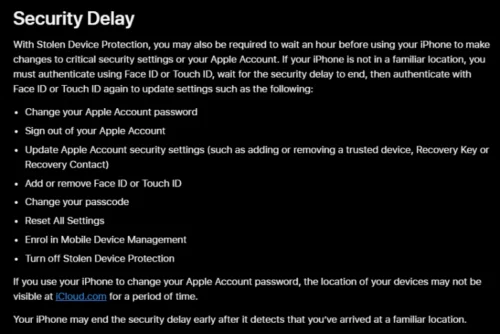
Apple’s Stolen Device Protection may require a one-hour waiting period before certain account security changes.
Some iPhone users discover that they cannot change their Apple ID password immediately, even when they know the correct device passcode.
This may happen because of Apple’s Stolen Device Protection feature.
Stolen Device Protection adds additional verification requirements for sensitive security operations.
For certain actions, including changing an Apple Account password, the iPhone may require:
- Successful Face ID or Touch ID verification.
- A one-hour security waiting period.
- Another successful biometric verification after the delay.
The security delay generally applies when the device is away from recognised locations, such as home or work.
Users who configure Stolen Device Protection to always require additional protection may encounter the delay even in familiar locations.
This feature is designed to reduce the risk of someone taking control of an Apple Account after stealing an iPhone and learning its passcode.
Do not disable Stolen Device Protection simply to make a routine password change faster. The extra verification helps protect sensitive account information.
What Happens After You Change Your Apple ID Password?
Changing your Apple ID password affects account authentication, but it does not normally erase your personal data.
The exact impact depends on your account settings and whether you choose to keep other devices signed in.
| Apple service or device | What may happen after a password change |
| iPhone and iPad | May request updated account authentication |
| Mac | May require the new password for certain Apple services |
| iCloud | Existing cloud data remains associated with the same account |
| App Store | May request the updated password for purchases or sign-in |
| Apple Watch | May need account reauthentication in certain situations |
| Apple TV | May prompt you to sign in again |
| iCloud for Windows | May request your updated credentials |
| Find My | Remains associated with the Apple Account, subject to device and account settings |
Will Changing Apple ID Password Delete Photos?
No. Updating your Apple Account password does not itself delete photos stored in iCloud.
However, devices may need to authenticate again before continuing to synchronise account data.
Users concerned about the security of their photo library should also understand how private hidden photos on an iPhone really are, particularly when other people have physical access to their devices.
Will Changing Apple ID Password Reset Apple Watch?
No. A password change does not automatically factory reset your Apple Watch.
However, you may need to authenticate your Apple Account again when accessing connected services or changing certain device settings.
If you intend to sell, transfer or troubleshoot a watch, understanding how to reset an Apple Watch correctly is important because factory resetting and removing Activation Lock are separate security considerations.
Will You Lose App Store Purchases?
Changing the password does not transfer your purchases to a different account or remove their association with your existing Apple Account.
You should continue using the same account to access previously purchased apps and eligible subscriptions.
What Should You Do After Changing Your Apple ID Password?
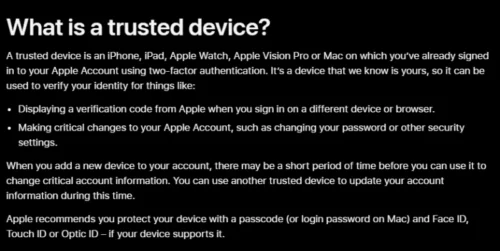
Apple’s trusted device guidance explains how connected devices help verify account ownership and protect Apple Accounts.
Updating the password is only one part of protecting your Apple Account.
A few additional checks can help prevent future access problems.
1. Review Trusted Devices
On your iPhone, open Settings and tap your name.
Scroll down to view devices associated with your Apple Account.
Review the list carefully.
If you discover an unfamiliar device, investigate it and remove it from your account if it does not belong to you.
You can also review account devices through the official Apple Account website.
2. Check Two-Factor Authentication
Two-factor authentication provides an additional verification requirement when someone attempts to sign in to your Apple Account on a new device.
Even if someone discovers your password, they may be unable to complete the sign-in without the required verification.
Check your account security settings and ensure your trusted phone numbers are correct.
Never disclose verification codes to someone contacting you unexpectedly.
3. Add an Account Recovery Contact
An account recovery contact can help you regain access if you forget your password and cannot complete normal verification.
To configure this option on a supported iPhone:
- Open Settings.
- Tap your name.
- Select Sign-In & Security.
- Open Recovery Contacts.
- Follow the instructions to add a suitable contact.
Choose someone you trust and who is likely to remain reachable when needed.
4. Review Account Notifications
Apple may send notifications when important changes occur, including password updates or sign-ins on unfamiliar devices.
If you receive an unexpected security notification, investigate it through your device settings or Apple’s official website.
Do not assume that every email claiming to be from Apple is genuine.
5. Keep Devices Updated
Installing available iOS, iPadOS, macOS and watchOS security updates can help protect against known vulnerabilities.
Keeping devices updated also helps ensure that current account recovery and authentication features are available.
Common Problems When Changing Apple ID Password
1. Change Password Option Is Missing
If you cannot find Change Password, check whether you are signed in to your Apple Account.
Also verify that you are looking in the correct settings menu.
On newer versions, the usual route is:
Settings > Your Name > Sign-In & Security > Change Password.
Older guides may display a different menu name.
2. Apple ID Password Change Is Not Working
A password change can fail for several reasons, including unsuccessful verification, an interrupted internet connection, restrictions or security delays.
Try checking your internet connection, reviewing the onscreen error and ensuring your device software is updated.
Avoid repeatedly submitting incorrect information.
If the problem continues, use Apple’s official recovery or support options.
3. Apple Says the New Password Is Too Weak
Choose a longer, unique password that meets Apple’s requirements.
Avoid commonly used passwords, obvious number sequences and passwords already associated with your other accounts.
A password manager can help create stronger alternatives.
4. Verification Code Is Not Arriving
Check whether the trusted phone number associated with your account is still active.
If you have another trusted Apple device, look for a verification notification there.
Use the available options to request verification through an alternative method when Apple offers one.
Do not attempt to bypass the authentication process through unofficial services.
5. Account Recovery Is Taking Too Long
Account recovery waiting periods are determined by Apple’s security processes.
If your recovery request requires a waiting period, follow Apple’s instructions carefully.
Trying to sign in on certain devices during recovery can cancel your request.
If you later regain access to a trusted device, Apple may allow you to reset your password through that device instead.
6. Apple ID Password Is Correct but Sign-In Still Fails
Check that you are entering the email address or phone number associated with the correct Apple Account.
If the credentials are correct, the issue may involve two-factor authentication, account restrictions or another sign-in requirement.
Read the exact error displayed before starting another password reset.
How to Protect Your Apple ID From Hackers and Phishing?
Apple Accounts are attractive targets because they can provide access to personal information and connected devices.
Password reuse, phishing messages and stolen device credentials are common security concerns.
To reduce these risks, use a unique password, maintain two-factor authentication and keep your trusted device information accurate.
Be especially cautious of emails and text messages claiming your Apple Account has been locked or that immediate verification is required.
Rather than opening unexpected links, navigate directly to Apple’s official website or the Settings app.
If you believe someone already has access to your account, changing the password should be followed by reviewing trusted devices, account details and associated phone numbers.
Also check the email account associated with your Apple Account. Its security matters because access to your email can assist an attacker in targeting other online accounts.
Frequently Asked Questions
How Do I Change My Apple ID Password on My iPhone?
Open Settings, tap your name, select Sign-In & Security and choose Change Password. Verify your identity and follow the instructions to create a new password.
Can I Change My Apple ID Password Without Knowing the Old Password?
Yes. If you have access to a trusted Apple device and can complete identity verification, you may be able to create a new password without entering your previous one.
Is My Apple ID Password the Same as My iCloud Password?
Yes. Your Apple Account password is used for iCloud and other Apple services. It is different from the passcode used to unlock your iPhone.
Can I Change My Apple ID Password From an Android Phone?
You can access Apple’s official account and recovery websites using an Android browser. However, you may still need additional verification or access to a trusted Apple device.
How Long Does It Take to Change an Apple ID Password?
A straightforward password change can usually be completed in a few minutes. Stolen Device Protection may require a one-hour delay, while formal account recovery can take several days or longer.
Does Changing My Apple ID Password Log Everyone Out?
Not necessarily. Apple may offer the choice to keep other devices signed in or require them to authenticate again. The outcome depends on the option selected and the device or service involved.
Can I Change My Apple ID Password Without a Phone Number?
It may be possible if another trusted device or recovery factor is available. Without sufficient verification methods, Apple may require account recovery.
Will Changing My Apple ID Password Delete My iCloud Data?
No. Changing the password does not itself delete the data stored in your Apple Account. Some devices may need to sign in again before accessing or synchronising information.
Why Is Apple Not Letting Me Change My Password?
Possible reasons include failed identity verification, account restrictions, missing trusted recovery information or a Stolen Device Protection security delay.
What Should I Do If Someone Else Changed My Apple ID Password?
Immediately attempt a reset through a trusted device or Apple’s official account recovery service. Once access is restored, review account details, trusted phone numbers and connected devices for unauthorised changes.
