
Unpairing an Apple Watch is an important step when switching to a new iPhone, selling your smartwatch, giving it to someone else or troubleshooting connection problems.
To unpair an Apple Watch, open the Watch app on your paired iPhone, go to My Watch > All Watches, tap the information (i) button beside your watch and select Unpair Apple Watch.
Confirm the action, choose what to do with your mobile plan if applicable, and enter your Apple Account password.
This process erases the Apple Watch, restores its factory settings, creates a backup on the paired iPhone and removes Activation Lock.
If you no longer have access to your iPhone, you can erase the Apple Watch directly. However, this method does not remove Activation Lock, so additional steps may be required before somebody else can use it.
In this guide, we explain how to unpair Apple Watch with or without an iPhone, what happens to your information, how to remove Activation Lock and how to resolve common unpairing problems.
What Should You Know Before Unpairing an Apple Watch?
Before removing your Apple Watch from an iPhone, it is important to understand the difference between unpairing, resetting and simply disconnecting the device.
These actions do not produce the same result.
| Action | Erases watch data? | Removes Activation Lock? | Creates a fresh backup? |
| Unpair using paired iPhone | Yes | Yes | Normally, yes |
| Erase directly from Apple Watch | Yes | No | No |
| Turn off Bluetooth | No | No | No |
| Restart Apple Watch | No | No | No |
| Remove watch through iCloud Find Devices | Can erase remotely | Yes, after the required removal steps | No fresh local backup |
Unpairing through the paired iPhone is generally the best method when preparing the watch for a new owner.
If you simply want to resolve minor performance issues, restarting the device may be sufficient. A complete factory reset should not be the first troubleshooting step.
Our existing guide on how to reset an Apple Watch explains the available reset options and when each should be used.
Before proceeding, make sure you know your Apple Watch passcode and Apple Account password. Keep both devices charged and close together.
How to Unpair Apple Watch Using an iPhone?
The most straightforward way to unpair an Apple Watch is through the Watch app on the iPhone currently connected to it.
The following method works across compatible Apple Watch Series, SE and Ultra models. The basic procedure is similar across recent watchOS versions, although some interface labels may differ.
Follow these steps:
- Keep your Apple Watch and iPhone close together. Make sure both devices are switched on and have sufficient battery power.
- Open the Watch app on your iPhone. This is the app normally used to configure your Apple Watch.
- Select My Watch and tap All Watches. This displays the Apple Watches associated with the app.
- Tap the information (i) button. Choose the icon beside the Apple Watch you want to unpair.
- Select Unpair Apple Watch. A confirmation screen will appear.
- Confirm the watch you want to remove. Tap Unpair followed by your Apple Watch name.
- Choose whether to keep or remove your mobile plan. This option appears on applicable GPS + Cellular models.
- Enter your Apple Account password. Apple requires authentication to disable Activation Lock.
- Confirm and allow the process to finish. Keep the devices close while the watch backs up, erases and disconnects.
After completing these steps, your Apple Watch will return to its initial setup state.
You can now pair it again with a compatible iPhone or prepare it for another owner.
Apple provides the same procedure in its official Apple Watch unpairing instructions.
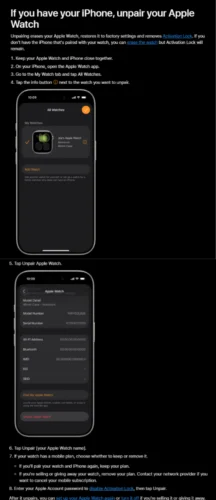
Unpair Apple Watch option displayed within the Watch app on an iPhone.
Should You Keep or Remove Your Apple Watch Mobile Plan?
Owners of GPS + Cellular Apple Watches must decide what happens to their mobile subscription during unpairing.
The appropriate choice depends on what they intend to do next.
| Situation | Recommended choice |
| Pair the same watch again | Keep mobile plan |
| Troubleshoot and reconnect the watch | Keep mobile plan |
| Sell the Apple Watch | Remove mobile plan |
| Give the watch to somebody else | Remove mobile plan |
| Stop using the watch entirely | Remove plan and contact your network provider |
Removing a mobile plan from the Apple Watch does not necessarily cancel the network subscription.
For example, a customer using an Apple Watch mobile service through EE, Vodafone or O2 may still need to contact the provider to cancel the associated subscription or watch add-on.
This is particularly important when selling a cellular model because recurring charges may otherwise continue.
How to Unpair Apple Watch Without an iPhone?
If your paired iPhone is lost, broken, unavailable or has already been replaced, you can erase the Apple Watch directly through its Settings app.
However, there is an important distinction: erasing the Apple Watch without the paired iPhone does not remove Activation Lock.
The watch remains associated with the original Apple Account until the owner removes that protection.
To erase the Apple Watch without an iPhone:
- Press the Digital Crown to access the apps on your Apple Watch.
- Open Settings.
- Scroll down and select General.
- Tap Reset.
- Select Erase All Content and Settings.
- Enter your Apple Watch passcode if requested.
- Choose whether to retain or remove the mobile plan on a cellular model.
- Tap Erase All to confirm.
The Apple Watch will begin deleting its stored information and restoring its original settings.
Once the process is complete, you can start pairing it again.
If Activation Lock is enabled, you will need the Apple Account credentials previously associated with the watch.
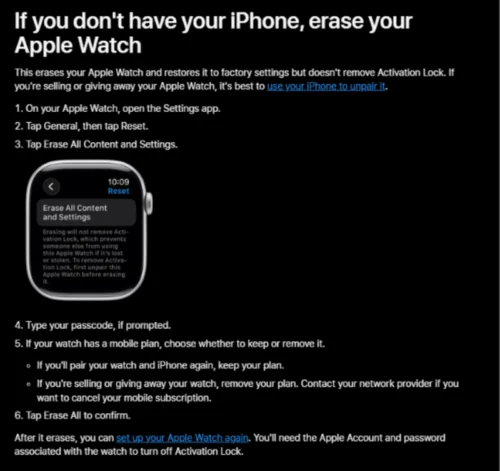
Apple Watch settings showing the Erase All Content and Settings option.
Our analysis of the available methods shows why the distinction matters. Erasing a watch is not equivalent to releasing it from its previous owner’s Apple Account.
Stephen Warwick, TechRadar’s Fitness & Wearables writer, makes this distinction in his February 2025 walkthrough about unpairing an Apple Watch from an old iPhone.
He explains that although the watch can be erased without its paired iPhone, Activation Lock remains an obstacle when the device is being transferred to somebody else.
Therefore, if you intend to sell your Apple Watch, you should also complete the Activation Lock removal process.
How to Remove Apple Watch Activation Lock Without the Paired iPhone?
Activation Lock is a security feature connected to Apple’s Find My service.
Its purpose is to prevent somebody else from activating and using an Apple Watch without the original owner’s permission.
When you correctly unpair an Apple Watch using its paired iPhone, Apple removes Activation Lock as part of the procedure.
However, if you erase the device directly, you may need to remove the protection separately.
If you no longer have the paired iPhone or the Apple Watch:
- Open Apple’s iCloud Find Devices service in a web browser.
- Sign in using the Apple Account associated with the watch.
- Open All Devices.
- Select your Apple Watch.
- Choose Erase Apple Watch or Erase, where available.
- Follow the onscreen instructions to complete the erasure.
- Once the watch has been erased, select the option to remove it from your account.
- Confirm the removal and any further account-authentication prompts.
The exact screen options may vary depending on the device’s current status.
If the watch is offline, the remote erase may remain pending until it connects to a network.
For the current instructions, refer to Apple’s Activation Lock support guide.
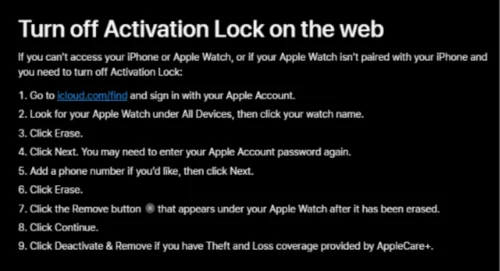
Apple’s official instructions for removing Apple Watch Activation Lock through iCloud Find Devices.
Remember that you must have legitimate access to the Apple Account associated with the watch. A factory reset does not bypass Activation Lock.
If you purchased a second-hand Apple Watch and it still requests another person’s account credentials, the previous owner must remove it from their account.
How to Unpair Apple Watch If You Forgot the Passcode?
Forgetting your Apple Watch passcode can prevent you from accessing the normal reset settings.
Fortunately, Apple provides a recovery procedure that allows you to erase the watch using its physical controls.
To reset an Apple Watch without the passcode:
- Place the Apple Watch on its charger.
- Press and hold the side button until the power controls appear.
- Release the side button.
- Press and hold the Digital Crown until the red Reset option appears.
- Tap Reset.
- Tap Reset again to confirm.
- Keep the watch on its charger while the reset completes.
On older watchOS versions, the power-off interface may look different.
This procedure removes the forgotten passcode by erasing the watch. It does not remove Activation Lock.
Afterwards, you may still need to enter the original Apple Account credentials to use the device again.
If you have also forgotten your Apple Account password, the account must be recovered through Apple’s authorised recovery process.
The difference between an Apple Account password and a device passcode is important. Our guide on changing an Apple ID password covers account recovery and authentication in greater detail.
What Happens to Your Data When You Unpair Apple Watch?
Unpairing an Apple Watch removes the information stored directly on the smartwatch.
This includes local settings, installed apps, payment cards, photographs and other content associated with the watch.
However, it does not necessarily mean losing all your fitness records, saved settings or other information.
Does Unpairing Apple Watch Create a Backup?
Yes. When you unpair through the connected iPhone, the iPhone normally creates an up-to-date Apple Watch backup before erasing the device.
The backup is stored on the paired iPhone and can subsequently be included in an iPhone backup to iCloud or a computer.
This is different from saying that the unpairing process always uploads a new, separate Apple Watch backup directly to iCloud.
The distinction matters because users who erase their watches without an iPhone do not trigger the same final local backup.
What Apple Watch Data Can Be Restored?
Apple Watch backups can include:
- Watch face configurations and customisations.
- Supported app settings and data.
- Notification and system settings.
- Home Screen app layout.
- Health and Fitness information, subject to backup settings.
- Supported synced music and photo settings.
- Workout and Activity calibration information.
However, certain information is excluded from Apple Watch backups.
| Data | Included in Apple Watch backup? |
| Watch face settings | Yes |
| Supported app settings | Yes |
| Health and Fitness data | Yes, subject to backup protection |
| Notification settings | Yes |
| Bluetooth pairings | No |
| Apple Pay cards | No |
| Apple Watch passcode | No |
| Messages | Not included in the Apple Watch backup |
Messages may be stored separately through iCloud synchronisation.
For Health and Fitness information, Apple requires iCloud or an encrypted computer backup to preserve the relevant data when backing up the iPhone.
Users who depend on their watches for tracking exercise, health trends or sleep should check their backup arrangements before erasing the device.
For example, someone who regularly uses Apple Watch sleep tracking may want to verify that their recent sleep information is visible in the Health app on their iPhone.
Unpairing the watch does not automatically remove the historical Health data already stored on the iPhone or synchronised with iCloud.
Will You Lose Your Apple Watch Faces?
Your custom watch faces may be restored from a compatible backup.
However, if you set up the Apple Watch as a completely new device, you may need to recreate your preferred designs and complications.
Our guide on how to change an Apple Watch face explains how to add, customise and organise faces after pairing.
How to Unpair Apple Watch Before Selling or Giving It Away?
Selling an Apple Watch requires more than simply switching it off or removing it from your wrist.
The next owner must be able to activate the device using their own Apple Account.
For this reason, we recommend completing the following checks before handing over the watch.
| Check | Why it matters |
| Unpair using the paired iPhone | Erases watch content and removes Activation Lock |
| Complete Apple Account authentication | Allows the device to be released from your account |
| Remove cellular plan | Separates the watch from your mobile plan |
| Contact mobile provider if necessary | Prevents unwanted ongoing subscription charges |
| Check the watch setup screen | Helps confirm the erase has completed |
| Remove personal accessories | Prepares the watch for transfer |
iMore contributor Luke Filipowicz similarly emphasises the importance of disabling Activation Lock when transferring an Apple Watch. His published instructions explain that a watch still protected by the previous owner’s account cannot simply be set up by its new owner.
This highlights an important point for anyone selling a second-hand smartwatch: the condition of the hardware is not the only factor that matters. The account and activation status are equally important.
A watch showing its initial setup screen may have been erased, but that alone is not conclusive proof that Activation Lock has been removed.
Ideally, the buyer should confirm that the device can proceed through pairing without requesting the previous owner’s Apple Account details.
How to Unpair Apple Watch From an Old iPhone and Connect It to a New One?
When upgrading your iPhone, you may need to transfer your Apple Watch connection.
However, unpairing is not always required.
During an iPhone-to-iPhone transfer, Apple’s setup process may offer to transfer an existing Apple Watch automatically, depending on the devices and their configuration.
If that option is unavailable, you can unpair the Apple Watch from your old iPhone and pair it manually with the new one.
To do this:
- Make sure your old iPhone and Apple Watch have up-to-date backups.
- On the old iPhone, open the Watch app.
- Select My Watch > All Watches.
- Tap the information button beside your Apple Watch.
- Select Unpair Apple Watch.
- Enter your Apple Account password and complete the process.
- On your new iPhone, open the Watch app.
- Select All Watches > Add Watch, or follow the onscreen pairing prompt.
- Bring the Apple Watch close to the new iPhone.
- Follow the instructions to pair the devices.
- Restore from a compatible backup when offered.
If your old iPhone has already been erased or is no longer available, the watch may need to be reset before pairing with the new phone.
You may also need access to the original Apple Account to complete Activation Lock verification.
Why Is Apple Watch Not Unpairing?
Sometimes, an Apple Watch may fail to disconnect properly even after you select the Unpair option.
Common causes include connection problems, account-authentication errors, software issues and interrupted reset processes.
1. Apple Watch Is Not Connecting to the iPhone
If the watch is disconnected, the normal unpairing process may not complete.
Try the following:
- Keep both devices close together.
- Check that Bluetooth and Wi-Fi are enabled on the iPhone.
- Make sure Airplane Mode is not preventing the necessary connections.
- Restart the iPhone and Apple Watch if appropriate.
- Open the Watch app and attempt the unpairing process again.
If the paired devices cannot reconnect, direct erasure followed by Activation Lock removal may be necessary.
2. Unpair Apple Watch Option Is Missing
If you cannot locate the Unpair option, confirm that you are using the Watch app rather than the iPhone’s general Bluetooth settings.
The standard path is:
Watch app > My Watch > All Watches > (i) > Unpair Apple Watch
If multiple Apple Watches are listed, select the correct device.
If the watch is no longer listed, it may already have been removed from the app or you may be using a different iPhone.
3. Apple Account Password Is Not Accepted
When unpairing, Apple may request the password associated with the Apple Account that originally activated the watch.
This is not necessarily the same as your iPhone or Apple Watch unlock passcode.
Check that you are entering the correct credentials.
If the password has been forgotten, use Apple’s account recovery process rather than repeatedly guessing.
4. Apple Watch Is Stuck During Unpairing
An Apple Watch may appear to take longer than expected to complete an erase.
Avoid interrupting the process unnecessarily.
Ensure the devices have enough battery power and allow the watch to complete its reset.
If the watch becomes completely unresponsive, a force restart may be appropriate. This normally involves pressing and holding the side button and Digital Crown together until the Apple logo appears.
A force restart does not itself unpair or erase an Apple Watch.
5. Apple Watch Still Shows Activation Lock
If the watch displays an Activation Lock screen after being erased, it remains associated with an Apple Account.
The owner must enter the original credentials or remove the device through Apple’s authorised account-removal procedure.
Do not rely on third-party services claiming to bypass Apple’s security protections.
How Can You Tell Whether Apple Watch Has Been Successfully Unpaired?
Once an Apple Watch has been successfully erased and unpaired, it should return to its setup state.
You will generally see the initial setup or pairing interface rather than the previous watch face and installed apps.
On your iPhone, the watch should no longer appear as an actively paired watch in the Watch app.
For additional assurance, check that the Apple Watch has been removed from the relevant Apple Account’s Find My devices list if you intend to transfer ownership.
These checks help distinguish a device that has simply lost its Bluetooth connection from one that has been properly erased and released.
FAQs About Unpairing Apple Watch
Can I Unpair Apple Watch Without My iPhone?
Yes. Open Settings > General > Reset > Erase All Content and Settings on the Apple Watch. This erases the device but does not remove Activation Lock. You will need the associated Apple Account credentials to complete activation or account removal.
Does Unpairing Apple Watch Delete Everything?
Unpairing removes content stored on the Apple Watch, including its apps, settings, Apple Pay cards and passcode.
When the process is completed using the paired iPhone, a backup is normally created first. Information already stored on your iPhone or synchronised with iCloud is not automatically deleted.
How Do I Unpair Apple Watch Without the Apple Account Password?
You can erase the Apple Watch directly without entering your Apple Account password if you can access the required reset controls.
However, this does not remove Activation Lock. You must recover access to the associated Apple Account or use Apple’s official ownership-verification support procedures.
Can I Unpair Apple Watch From Bluetooth Settings?
No. Removing an Apple Watch from the iPhone’s Bluetooth device list is not a substitute for the official unpairing procedure. Use the Watch app to erase the device and remove Activation Lock properly.
Can I Pair My Apple Watch Again After Unpairing?
Yes. Once the unpairing process is complete, bring the Apple Watch near a compatible iPhone and follow the setup instructions. If an eligible backup is available, you can choose to restore the watch’s supported settings and data.
How Long Does It Take to Unpair an Apple Watch?
The time varies according to the watch model, its software version, the amount of stored information and connection conditions. Allow sufficient time for the backup and erase to finish, and avoid interrupting the process.
Can I Unpair Apple Watch if the Screen Is Broken?
If the watch can still communicate with its paired iPhone, try unpairing through the iPhone’s Watch app. If this is not possible, the owner may need to use Apple’s remote account-management options or seek assistance through Apple Support.