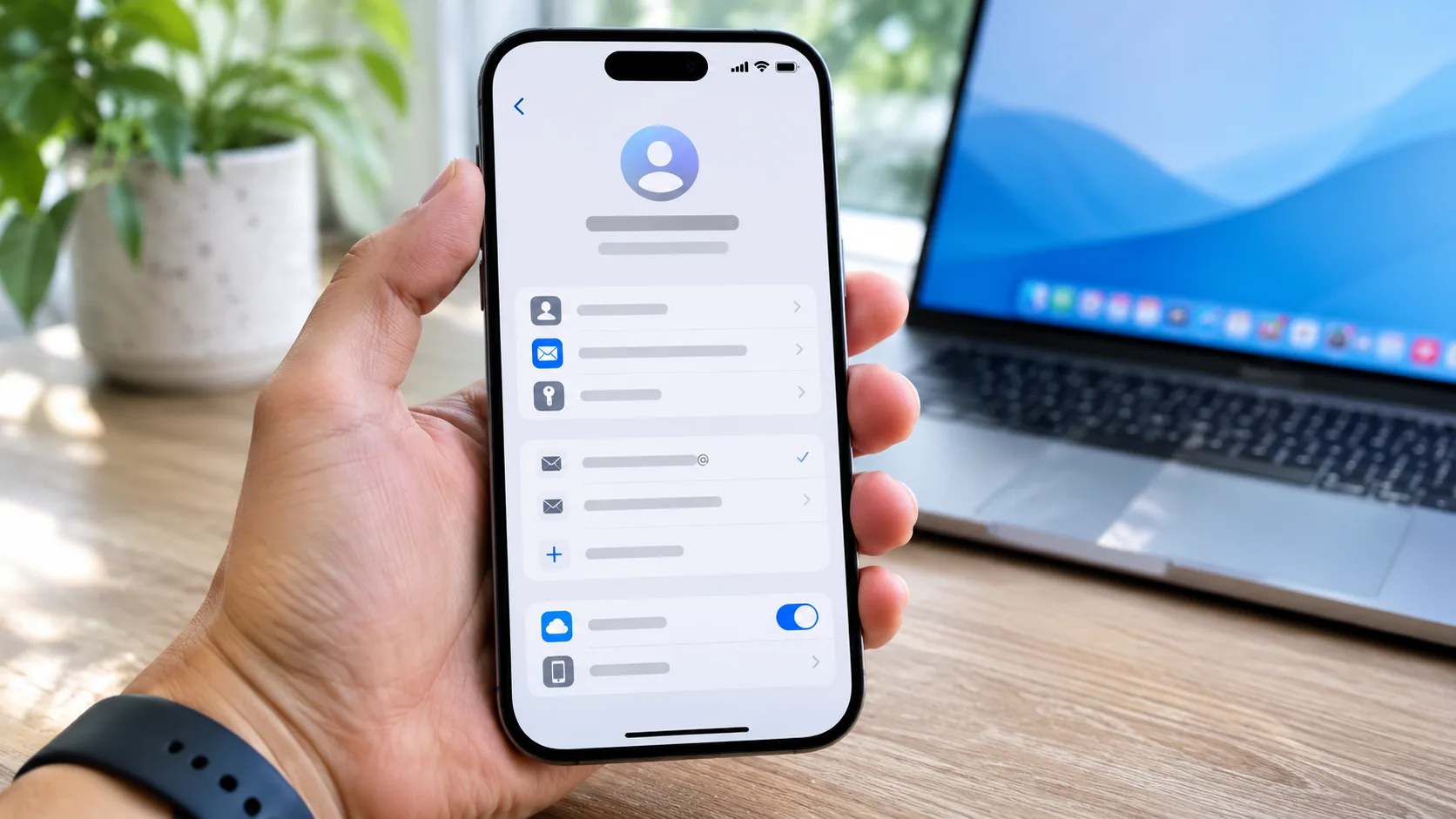

Changing your Apple ID email address is straightforward when you have access to a trusted Apple device and the new email address you want to use.
Whether you are switching to Gmail, replacing an old work email or updating your account for security reasons, you can usually complete the process without creating a new Apple Account.
To change your Apple ID email, open Settings > Your Name > Sign-In & Security > Primary Email. Select your existing email address, choose whether to retain or remove it, enter your new email address and complete the verification process.
Changing your email address does not automatically delete your iCloud photos, contacts, App Store purchases, subscriptions or other information associated with your account.
However, the process can differ depending on whether you use a third-party email address, an iCloud email address or no longer have access to your original login details.
This guide explains how to change your Apple ID email safely across different devices, resolve common verification problems and maintain access to your Apple services.
Can You Change Your Apple ID Email Without Creating a New Account?
Yes, Apple allows users to update the primary email address associated with an existing Apple Account without registering for a separate account.
Apple ID is now officially called Apple Account. Although the terminology has changed, users can continue accessing their existing services using their associated sign-in credentials.
Your primary email address is particularly important because Apple uses it to send account communications, and it may be visible to people you collaborate with through iCloud.
Jason Cross, Senior Editor at Macworld, explained that following the introduction of iOS 18.1, Apple had made it “a lot easier to change your primary Apple ID address”.
The introduction of direct email management through trusted devices has reduced the need to rely exclusively on Apple’s account management website.
Understanding the different types of email addresses associated with an Apple Account can help you choose the correct settings.
| Email Address Type | Purpose | Can Be Used to Sign In? |
| Primary email address | Main account communications | Yes |
| Additional email address | Alternative login and communication address | Yes |
| Rescue email address | Security and recovery communications on eligible accounts | No |
| Hide My Email address | Protects your personal email through forwarding | No |
Changing your primary email is different from transferring your purchases or personal information to another Apple Account.
What Should You Check Before Changing Your Apple ID Email?
Although changing an email address does not normally affect stored account information, completing a few security checks beforehand can help prevent unnecessary access problems.
Before updating your Apple ID email:
- Ensure you know your current Apple Account password.
- Confirm that your new email address can receive messages.
- Check that the new email is not associated with another Apple Account.
- Keep your trusted iPhone, iPad or Mac available.
- Confirm that your trusted phone number is still active.
- Install available software updates if the required settings are missing.
- Check that important iCloud information is synchronised.
If you cannot remember your existing password, learning how to change your Apple ID password can help you restore secure access before updating your email address.
You should also avoid signing out of your only trusted Apple device before completing the change. Maintaining access to that device can make identity verification considerably easier.
Which Type of Email Change Do You Need?
| Situation | Recommended Action |
| Switching from Gmail to Outlook | Add and verify the new email address |
| Keeping your old email as an alternative login | Disable Primary Email for the old address |
| Removing an inaccessible work email | Select Remove from Account |
| Changing an existing iCloud email | Use Change Email Address where available |
| Using an email registered to another Apple Account | Remove it from the other account first |
| Forgotten Apple Account password | Complete password recovery first |
Selecting the correct option is important because removing an email address and changing its primary status have different consequences.
How to Change Apple ID Email on an iPhone or iPad?
Using an iPhone or iPad already connected to your Apple Account is generally the simplest method.
Modern versions of iOS and iPadOS allow you to manage your account email directly through the device settings.
Step 1: Open Your Apple Account Settings
Unlock your iPhone or iPad and open the Settings application.
Tap your name at the top of the screen to access your Apple Account settings.
Step 2: Access Sign-In & Security
Select the Sign-In & Security option.
This section contains your associated email addresses, phone numbers and account authentication settings.
Step 3: Select Your Primary Email Address
Locate the email address currently identified as your primary email.
Tap the address to open its management options.
Caption: Apple Account Sign-In & Security settings showing the primary email address on an iPhone.
Step 4: Choose Whether to Keep or Remove Your Old Email
Depending on your account configuration, you may see the following options:
- Primary Email toggle: Turn this off if you want to retain your existing email as an additional account address.
- Remove from Account: Choose this option if you no longer want the old email associated with your account.
- Change Email Address: This may appear when changing an existing iCloud email address.
If you still have access to your previous email address, retaining it temporarily can make the transition easier.
However, if your old email belongs to a former employer or is no longer under your control, removing it may be the more appropriate option.
Step 5: Enter Your New Email Address
Apple will prompt you to select another associated email address or add a new one.
Enter the email address you want to use, ensuring there are no spelling errors.
Step 6: Verify Your New Email Address
Complete the verification instructions displayed on your device.
Once verification is successful, your new primary email address should appear in your account settings.
You can also refer to the official Apple Support instructions for changing your primary email address for the latest device-specific requirements.
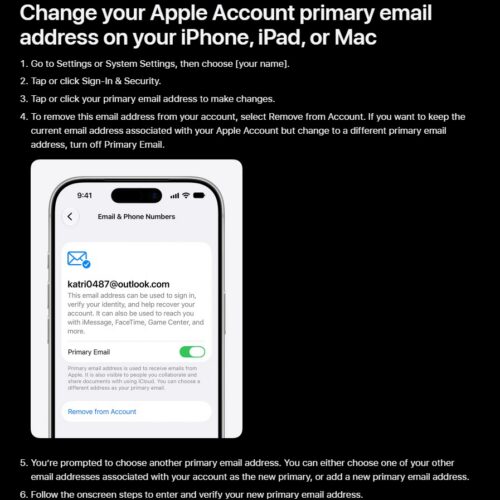
Caption: Apple Account options for changing or removing an existing primary email address.
How to Change Apple ID Email on a Mac or MacBook?
Mac users can manage their Apple Account email addresses directly through macOS without necessarily needing an iPhone.
To update your email address:
- Open the Apple menu.
- Select System Settings.
- Click your name at the top of the sidebar.
- Open Sign-In & Security.
- Locate your current primary email address.
- Select the appropriate option to change its primary status or remove it.
- Add or select your replacement email address.
- Complete the required verification.
If you need to add another email address first, look for the Add an Email or Phone Number option.
Once the process is complete, review your Apple Account settings to ensure the new information appears correctly.
Older versions of macOS may display different menus or provide fewer account management options. Updating your Mac or using another trusted Apple device may resolve this limitation.
How to Change Your Apple ID Email Online Using a PC?
You do not necessarily need an iPhone or Mac to manage your Apple Account.
Apple provides a web-based account management platform that can be accessed through Windows computers, Android devices and other internet-enabled devices.
To change your Apple ID email online:
- Visit the official Apple Account website.
- Sign in using your existing Apple Account credentials.
- Complete any required identity verification.
- Open Sign-In and Security.
- Select Email & Phone Numbers.
- Follow the available instructions to update your primary email.
- Verify your replacement email address.
Apple may redirect you to a trusted device instead of allowing the entire process to be completed through the browser.
Therefore, the web-based method should not be considered a guaranteed alternative when you have lost access to all your trusted devices.
| Account Management Method | Device Required | Recommended For |
| iPhone settings | iPhone | Existing iPhone users |
| iPad settings | iPad | Users without an iPhone |
| Mac System Settings | Mac or MacBook | macOS users |
| Apple Account website | Compatible web browser | Windows and Android users |
| Account recovery | Internet access or eligible device | Users unable to authenticate |
How to Change Apple ID Email Without Access to Your Old Email?
Losing access to your original email address does not necessarily prevent you from changing your Apple ID email.
For example, you may have created your Apple Account using a university email address, a previous employer’s email or an email account that has since been closed.
If you are still signed in on a trusted Apple device, you may be able to update your email address by authenticating through that device and verifying your replacement email.
If You Still Have a Trusted Apple Device
Open your Apple Account settings, navigate to Sign-In & Security and attempt to replace the inaccessible email address.
Complete the identity checks requested by Apple and verify your new email.
You do not automatically need access to your old inbox if Apple can authenticate your identity through other supported methods.
If You Have Lost Access to Your Trusted Devices
If you cannot sign in or complete the required security checks, you may need to begin Apple’s account recovery process.
You can access Apple’s recovery service by entering iforgot.apple.com into your browser.
Depending on your circumstances, Apple may require additional information or impose a recovery waiting period.
Avoid third-party services claiming they can bypass Apple Account verification or instantly remove account security restrictions.
Can You Change Your Apple ID Email to Gmail or Outlook?
Yes. Apple Accounts can use eligible third-party email addresses from providers such as Gmail, Outlook and Yahoo.
You do not need an iCloud email address to use an iPhone, download applications or access most Apple services.
However, the replacement email address must be available and capable of receiving Apple’s verification messages.
| Email Provider | Can Be Used as an Apple Account Email? |
| Gmail | Yes |
| Outlook | Yes |
| Yahoo Mail | Yes |
| Hotmail | Yes |
| iCloud Mail | Yes |
| Personal domain email | Generally yes |
| Business email | Generally yes, subject to account restrictions |
For long-term account security, using a personal email address that you control is generally preferable to relying on an employer or educational institution.
Example: Changing a Work Email to a Personal Gmail Address
Consider an employee who created an Apple Account using a company email address several years ago.
When leaving the organisation, the employee may lose access to that inbox, making it more difficult to receive account notifications.
By replacing the work email with a personal Gmail address before leaving, the employee can maintain control over the existing Apple Account without unnecessarily transferring photos, applications or subscriptions.
This is particularly important for freelancers, business owners and professionals who regularly change employers or business domains.
How Do You Change an Apple ID Email Ending in @icloud.com?
Changing an Apple-provided iCloud email address works differently from replacing a third-party email address.
Older tutorials frequently suggest that an iCloud email address cannot be changed. However, Apple now supports changing an existing iCloud email address on compatible devices.
According to Apple’s current documentation, the following minimum software versions support this feature:
| Device | Minimum Software Requirement |
| iPhone | iOS 18.1 |
| iPad | iPadOS 18.1 |
| Mac or MacBook | macOS 26.4 |
When your only associated email address is an iCloud email address, Apple may display Change Email Address instead of Remove from Account.
Select this option and complete the instructions to establish your replacement iCloud email address.
Apple confirms that changing the address through this feature allows you to continue using iCloud Mail and retain your existing messages.
However, you should inform important contacts about the new address and avoid assuming that all future messages sent to your previous address will automatically be forwarded.
Will Changing Your Apple ID Email Delete Photos, Apps or Subscriptions?
No. Updating your primary email address does not create a different Apple Account.
Your account identity remains the same even though its primary email address has changed.
This means that purchases, subscriptions and personal information generally remain associated with the existing account.
| Apple Service or Data | Effect of Changing Apple ID Email |
| iCloud Photos | Remain associated with your account |
| iCloud Drive | Existing files remain available |
| App Store purchases | Remain linked to the account |
| Apple Music | Subscription and account remain active |
| Apple TV+ | Subscription remains associated |
| Contacts | Remain available |
| iCloud backups | Remain linked to the account |
| Apple Watch | Does not automatically unpair |
| Family Sharing | Membership normally remains unchanged |
| Find My | Devices remain associated with the account |
| iMessage and FaceTime | Contact addresses may need updating |
Some devices or services may request additional authentication after the change.
Users particularly concerned about photo security should also understand whether hidden photos on an iPhone are really private, especially when multiple people have access to connected Apple devices.
Similarly, changing your Apple ID email does not require you to unpair your Apple Watch or erase the device.
The important distinction is between changing the email on an existing account and signing in with an entirely different Apple Account.
What Happens to Your Old Apple ID Email Address?
Apple provides different options depending on whether you want to retain or completely remove your previous email address.
Keeping Your Old Email Address
Turning off its primary email status can allow the address to remain associated with your Apple Account.
This can be useful if you continue using the old inbox or want to retain it as an alternative sign-in address.
However, retaining an address that you no longer control is not advisable.
Removing Your Old Email Address
When a non-iCloud email address is removed from an Apple Account, Apple applies a 30-day security restriction before it can be associated with another Apple Account.
After this period, another eligible user may be able to associate the address with their account.
This is particularly relevant when an employer reassigns an old company email address to another employee.
| Action | Old Email Remains Associated? | 30-Day Restriction |
| Turn off Primary Email | Yes | Not triggered by this action |
| Remove a third-party email | No | Applies |
| Change an existing iCloud email | Old address is replaced | Separate iCloud address rules apply |
It is advisable to notify people who previously contacted you through that email address using FaceTime, iMessage or other Apple services.
Why Can’t You Change Your Apple ID Email Address?
Although Apple provides several ways to update your account information, certain security restrictions and technical problems can prevent the change from being completed.
The New Email Address Is Already in Use
An email address associated with another Apple Account cannot immediately be assigned to your account.
Check whether you previously registered a separate Apple Account using that email address.
If the address is removed from another account, you may need to wait 30 days before attempting to use it.
You Are Not Receiving the Verification Email
Verification problems may occur because of spam filtering, incorrect email addresses or email provider restrictions.
To resolve this issue:
- Check your spam and junk folders.
- Confirm that the email address has been entered correctly.
- Search your inbox for messages from Apple.
- Request another verification email where available.
- Check whether your email provider is blocking Apple’s messages.
Never share your verification code with someone claiming to represent Apple through an unexpected telephone call or message.
The Email Change Option Is Missing
If the option is unavailable, check whether your device is running a compatible software version.
You should also confirm whether you are using an iCloud email address or an account managed by an organisation.
In some circumstances, the account may need to be managed through another trusted device or by the organisation responsible for a Managed Apple Account.
Your Security Settings Prevent the Change
Apple’s authentication systems may require additional verification before sensitive account information can be modified.
This may include two-factor authentication, device passcode verification or additional security checks.
Use a trusted device and follow the official authentication instructions rather than attempting to disable or bypass account protections.
| Common Problem | Recommended Solution |
| Email already registered | Check other Apple Accounts |
| Verification message missing | Review spam folders and resend |
| Change option unavailable | Update device software |
| Cannot remember password | Reset your Apple Account password |
| No access to old email | Authenticate using a trusted device |
| Account controlled by an employer | Contact the account administrator |
| Web browser redirects to iPhone | Complete the change on a trusted device |
What Should You Do After Changing Your Apple ID Email?
Successfully updating your primary email is only the first part of maintaining uninterrupted access to Apple’s ecosystem.
Checking your connected services afterwards can help prevent missed notifications, synchronisation problems and outdated contact information.
Review iMessage and FaceTime
On your iPhone, navigate to Settings > Apps > Messages > Send & Receive.
Check that your preferred phone number and email addresses are selected.
Next, open the FaceTime settings and review the addresses people can use to contact you.
Check iCloud Synchronisation
Open your iCloud settings and confirm that important services, including Photos, Contacts, Notes and iCloud Drive, continue to synchronise.
You should not need to disable these services simply because your primary email address has changed.
Review Hide My Email and Sign in with Apple
Users who register for third-party applications through Sign in with Apple may have selected Hide My Email to protect their personal information.
After changing your Apple Account email, review the forwarding destination associated with these services.
An outdated forwarding address could result in missed receipts, login messages or important application notifications.
Confirm Your Connected Devices
Review the devices listed under your Apple Account and check that you recognise each one.
Remove unfamiliar devices where appropriate and investigate any unexpected security notifications.
Check Your Account Recovery Information
Ensure that your trusted phone numbers and any configured recovery contacts remain accurate.
Keeping these details up to date can help you regain access if you experience problems signing in later.
[SCREENSHOT]
Caption: Connected devices and account security information displayed within Apple Account settings.
Screenshot instructions: Open Settings > Your Name and capture the connected device list. Hide device identifiers, personal names and other sensitive information.
What Mistakes Should You Avoid When Changing Your Apple ID Email?
Several common mistakes can make an otherwise straightforward account update unnecessarily complicated.
| Mistake | Potential Consequence |
| Creating a completely new Apple Account | Purchases and existing account data remain on the original account |
| Signing out of all trusted devices | More difficult account authentication |
| Using a temporary email address | Future account recovery problems |
| Removing an email before checking contact settings | Missed FaceTime or iMessage communications |
| Using an employer-controlled email | Loss of account email access when leaving employment |
| Ignoring verification messages | Incomplete email change |
| Sharing verification codes | Increased account takeover risk |
| Factory resetting the iPhone | Unnecessary disruption and possible data loss |
The safest approach is to update the existing account, retain access to trusted devices and confirm that all essential services remain operational.
Conclusion
Understanding how to change your Apple ID email can help you maintain long-term control over your Apple Account without losing access to your purchases, subscriptions, photos or personal information.
For most users, the easiest method is to open Settings on a trusted iPhone, iPad or Mac and navigate to Sign-In & Security. You can then update the primary email address and complete the required verification.
Apple also provides browser-based account management and supports changing existing iCloud email addresses on compatible software versions.
Whether you are replacing an inaccessible email, switching providers or strengthening account security, always use an email address that you control and check your connected Apple services after completing the change.
Frequently Asked Questions
Can I change my Apple ID email without changing my password?
Yes. Changing your primary email address does not automatically require a new password. However, Apple may ask you to enter your existing password or complete additional identity verification.
Can I have two email addresses on one Apple Account?
Yes. An Apple Account can have multiple associated email addresses, although only one is designated as the primary email address.
How long does it take to change an Apple ID email?
The process can usually be completed within a few minutes if you have access to a trusted device and your new email inbox. Security restrictions or account recovery requirements may extend the process.
Will changing my Apple ID email affect my Apple Music subscription?
No. Your Apple Music subscription remains associated with your existing Apple Account. You may occasionally need to authenticate again.
Can I use the same email address for two Apple Accounts?
No. An email address cannot simultaneously be associated with two separate Apple Accounts.
Do I need to reset my iPhone after changing my Apple ID email?
No. Updating your primary email address does not require a factory reset, and resetting your device unnecessarily could cause data loss.
Can I change my Apple ID email if I have forgotten my password?
You may need to reset your password or complete account recovery before changing the email address. An existing trusted device can make the recovery process easier.