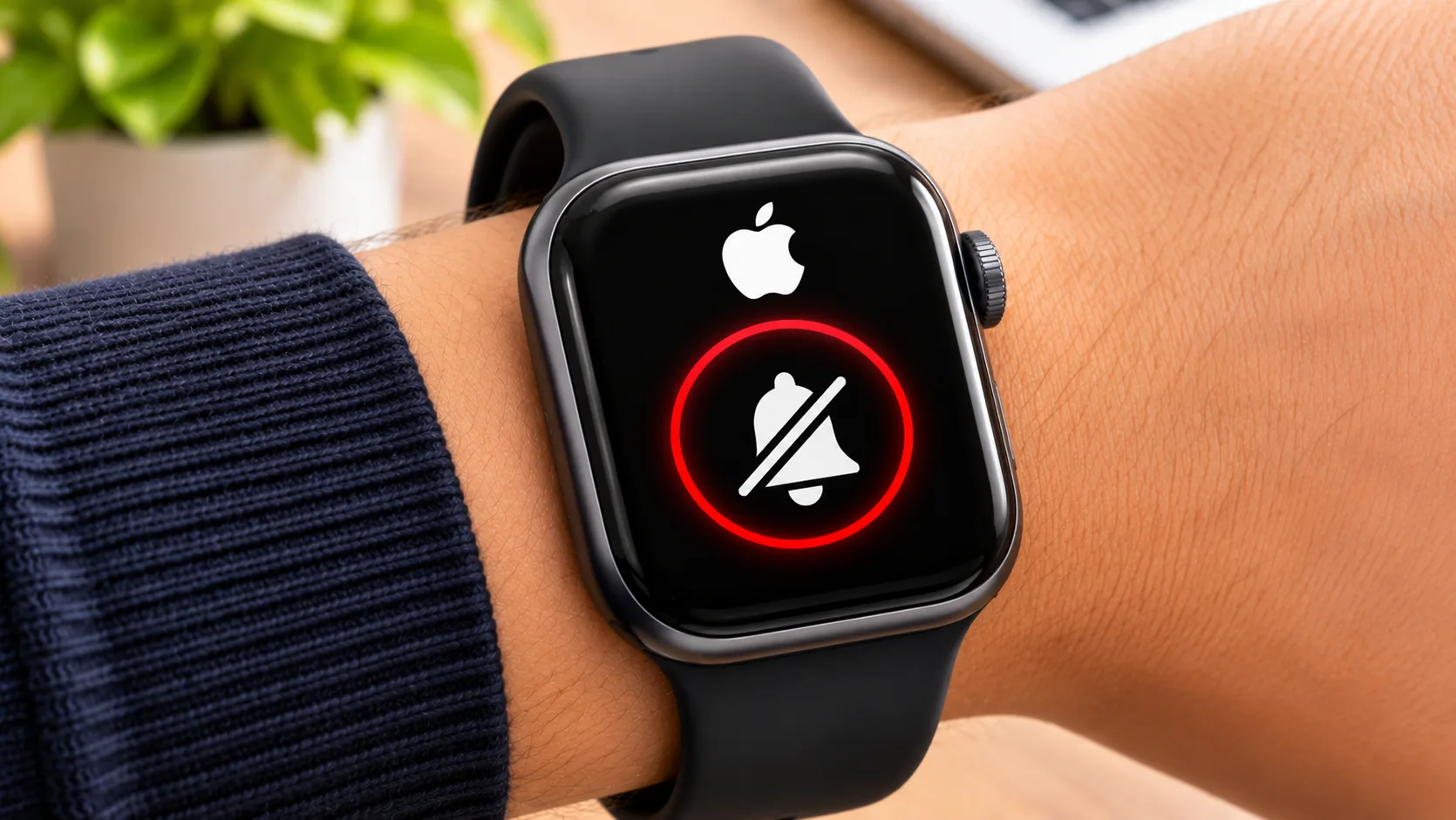

An Apple Watch helps you stay connected through calls, messages, reminders and app notifications.
However, constant notification sounds can become distracting during meetings, at work, in cinemas or when you are trying to sleep.
The quickest way to silence an Apple Watch is to press the side button, open Control Centre and tap the bell-shaped Silent Mode button. This stops most notification sounds while allowing the watch to continue delivering vibrations and visual alerts.
You can also silence your Apple Watch through its settings, using your iPhone, enabling Do Not Disturb, or choosing Theatre Mode when you want the screen to remain dark.
Each option works differently. Some stop sounds but preserve vibrations, while others prevent both audible and haptic notifications.
In this guide, we explain seven practical ways to silence your Apple Watch, how to stop unwanted vibrations, and what to check if your smartwatch continues making sounds.
How to Silence Apple Watch Using Control Centre?
Silent Mode is the fastest and most convenient way to mute your Apple Watch without disconnecting it from your iPhone.
Follow these steps:
- Wake your Apple Watch by tapping its display or raising your wrist.
- Press the side button located below the Digital Crown.
- Control Centre will appear with several quick settings.
- Find the Silent Mode button, represented by a bell symbol.
- Tap the bell button to activate Silent Mode.
- The button changes appearance to indicate that Silent Mode is enabled.
Your Apple Watch will now stop producing ordinary notification and alert sounds.
You will still receive supported notifications through vibrations, provided haptic feedback remains enabled.
To turn the sound back on, open Control Centre and tap the Silent Mode button again.
On watchOS 10 and later, the side button opens Control Centre. On older versions, you may need to swipe up from the bottom of the watch face.
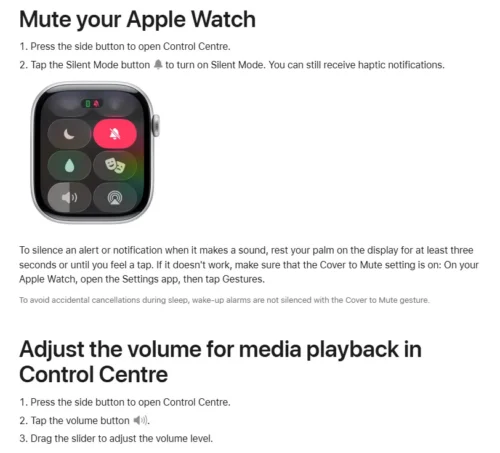
How to silence an Apple Watch using the Silent Mode button in Control Centre.
How to Put Apple Watch on Silent Using Settings?
If you prefer changing settings directly rather than using Control Centre, Apple Watch provides a separate option for managing notification sounds.
- Press the Digital Crown to open your Apple Watch apps.
- Select the Settings app.
- Scroll down and tap Sounds & Haptics.
- Locate the Silent Mode option.
- Turn Silent Mode on.
Once enabled, the watch mutes ordinary alerts and notifications, but haptic feedback can continue.
You can return to the same screen whenever you need to disable Silent Mode.
This settings page is also useful if you want to adjust alert volume or vibration strength.
For example, someone working in an office may prefer silent notifications with prominent haptic feedback rather than disabling all notifications.
How to Silence Apple Watch From an iPhone?
You do not always need to operate the Apple Watch itself to change its sound settings.
The paired iPhone includes a Watch app that allows you to manage several smartwatch functions, including Silent Mode.
To silence your Apple Watch from your iPhone:
- Unlock your paired iPhone.
- Open the Watch app.
- Select the My Watch tab.
- Scroll down and tap Sounds & Haptics.
- Find the Silent Mode setting.
- Turn the switch on.
The setting will be applied to your paired Apple Watch when the devices can communicate.
This method is particularly convenient when your watch is on its charger or you are already adjusting its other settings from your phone.
Remember that enabling Silent Mode on your Apple Watch does not automatically put your iPhone into Silent Mode.
The two devices have separate sound controls, although Focus settings can be shared between them.
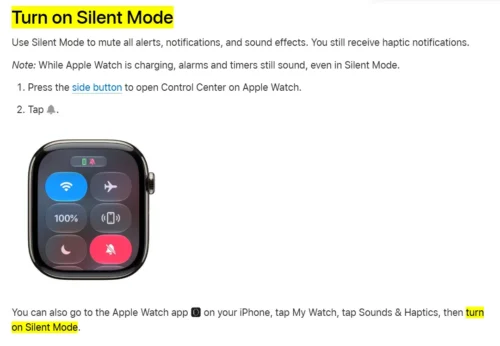
Turning on Apple Watch Silent Mode through the paired iPhone’s Watch app.
How to Silence an Apple Watch Quickly With Your Hand?
Apple Watch includes a useful Cover to Mute gesture for stopping a notification or alert that is already making a sound.
Rather than opening settings, you can silence the active alert by placing your hand over the display.
Follow these instructions:
- Wait until a notification or incoming call produces an alert.
- Place your palm over the Apple Watch screen.
- Keep the display covered for approximately three seconds.
- A haptic tap confirms that the alert has been muted.
This feature is useful when your watch starts ringing unexpectedly during a conversation or meeting.
However, Cover to Mute only silences the active alert. It does not enable Silent Mode for future notifications.
If the gesture does not work, check whether it is enabled:
Apple Watch Settings > Gestures > Cover to Mute
Apple also explains that wake-up alarms are not silenced by the Cover to Mute gesture, helping prevent accidental cancellation while sleeping.
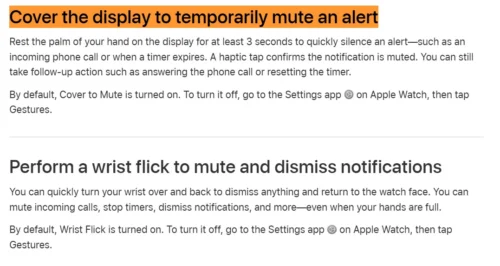
How to enable Cover to Mute to silence individual Apple Watch alerts.
How to Silence Apple Watch With Theatre Mode?
Theatre Mode is designed for situations where both notification sounds and unwanted screen illumination could disturb people around you.
Unlike standard Silent Mode, Theatre Mode prevents the Apple Watch display from automatically waking when you raise your wrist.
To activate Theatre Mode:
- Press the side button to open Control Centre.
- Find the Theatre Mode button, represented by two theatrical masks.
- Tap the button to enable the feature.
- The watch automatically activates Silent Mode and keeps the display dark when you raise your wrist.
You can still wake the display manually by tapping the screen or using the Digital Crown or side button.
Haptic notifications may continue while Theatre Mode is enabled.
When Should You Use Theatre Mode?
It works particularly well during cinema screenings, live performances, presentations and other situations where a bright smartwatch display could be distracting.
For users who want a different visual appearance during normal use, our guide on how to change an Apple Watch face explains the available watch-face customisation options. However, changing the watch face alone does not silence notifications.
How to Silence Apple Watch With Do Not Disturb or Focus?
Do Not Disturb provides stronger notification suppression than Silent Mode.
Whereas Silent Mode generally prevents notification sounds but allows vibrations, Do Not Disturb can stop both audible and haptic notifications from interrupting you.
To turn on Do Not Disturb:
- Open Control Centre by pressing the side button.
- Tap the Focus button, normally represented by a crescent moon.
- Select Do Not Disturb.
- Choose On or an available duration, such as one hour.
- Confirm the setting.
Your watch will now suppress ordinary incoming calls and notifications until the mode ends.
You can also use a customised Focus to allow notifications from selected contacts and applications.
For example, a Work Focus could block social media notifications while allowing important calls from colleagues or family members.
Focus settings can also be shared with an iPhone and other compatible Apple devices signed in to the same Apple Account.
If you want Do Not Disturb to operate across devices, check the Share Across Devices option in your iPhone’s Focus settings.
Can You Automatically Silence Apple Watch at Night?
Yes. Sleep Focus can help reduce notifications and screen distractions during your normal sleeping hours.
You can configure your sleep schedule and associated Focus settings using the Sleep app and your paired iPhone.
Rather than manually silencing the watch every evening, you can use a scheduled Sleep Focus to limit interruptions.
Our guide on how to track sleep on Apple Watch explains the sleep-tracking features and associated setup requirements.
Remember that Sleep Focus and Silent Mode are separate features, and alarm settings still need to be checked individually.
How to Silence Notifications From Individual Apple Watch Apps?
Sometimes, you may want to keep phone calls and important messages active while silencing notifications from less important applications.
Rather than muting the entire device, Apple Watch allows you to manage notifications from individual apps.
Using your paired iPhone:
- Open the Watch app.
- Select My Watch.
- Tap Notifications.
- Choose the application you want to manage.
- Select the available notification settings.
- Choose an option such as Custom, Send to Notification Centre or Notifications Off, depending on the app.
Some applications mirror the notification preferences configured on your iPhone.
You can also temporarily mute notifications directly from the Apple Watch Notification Centre.
Open a notification, swipe left and select the More button. Depending on the app and notification, you may see options such as Mute for 1 Hour or Mute for Today.
This provides more precise control over unwanted interruptions without silencing important notifications from other applications.
What Is the Difference Between Silent Mode, Theatre Mode and Do Not Disturb?
The best setting depends on whether you want to eliminate sounds, vibrations, screen activity or all three.
| Feature | Silent Mode | Theatre Mode | Do Not Disturb |
| Ordinary notification sounds | Silenced | Silenced | Silenced |
| Notification vibrations | Usually continue | Usually continue | Suppressed |
| Visual notification alerts | Continue | Suppressed | Suppressed |
| Screen wakes when wrist is raised | Normally yes | No | Normally yes |
| Stops ordinary incoming call alerts | Sound only | Sound and automatic display alerts | Sound and haptic alerts |
| Best use | Workplaces and quiet rooms | Cinemas and performances | Meetings and focused work |
| Duration options | Until switched off | Until switched off | Can be temporary or indefinite |
The distinction is important because switching on Silent Mode does not make the Apple Watch completely inactive.
According to the Apple Watch User Guide on silencing notifications, the different modes are designed to control sound, haptic feedback and visual interruptions separately.
For complete notification suppression, Do Not Disturb or an appropriately configured Focus is generally more suitable than Silent Mode alone.
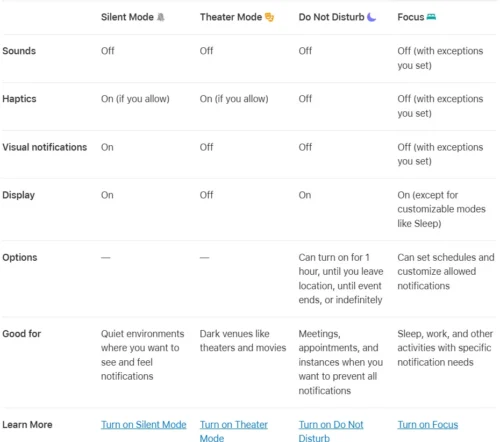
Comparison of Apple Watch Silent Mode, Theatre Mode, Do Not Disturb and Focus settings.
How to Stop Apple Watch Vibrating When It Is on Silent?
One common misunderstanding is that Silent Mode disables every form of alert.
In reality, Apple Watch can continue delivering haptic feedback even when notification sounds are muted.
Haptic feedback refers to the physical taps or vibrations you feel on your wrist.
If you want to stop these vibrations:
- Open Settings on your Apple Watch.
- Select Sounds & Haptics.
- Find the Haptics settings.
- Choose Off to disable the relevant haptic alerts.
Depending on your watchOS version, you may also see Default and Prominent haptic options.
Default provides normal haptic feedback, while Prominent makes supported alerts more noticeable.
You may also find separate settings for system interactions and Digital Crown haptics.
Disabling haptics can make notifications and alarms easier to miss. If you only want temporary quiet, consider using Do Not Disturb instead.
Will Apple Watch Alarms Still Sound in Silent Mode?
Apple Watch alarms do not behave exactly like ordinary notification sounds.
When Silent Mode is enabled, alarms may alert you through haptic feedback rather than an audible sound.
However, there are important exceptions:
- While charging: Apple states that alarms and timers continue producing sounds even when Silent Mode is enabled.
- While wearing the watch: An alarm may rely on haptic feedback unless configured to play sound.
- Break Through Silent Mode: On supported software, this alarm setting allows an audible alarm even when Silent Mode is active.
- Do Not Disturb: This mode does not necessarily prevent alarm notifications from sounding.
If you depend on your Apple Watch to wake up, check the alarm settings before going to sleep.
For supported alarms, open the Alarms app, select the relevant alarm and look for the Break Through Silent Mode option.
This is particularly important if you have disabled haptic feedback, because you may otherwise miss an expected alert.
Why Is My Apple Watch Still Making Sounds on Silent Mode?
If your Apple Watch continues making noise after Silent Mode is enabled, it does not automatically mean that something is wrong with the device.
Several types of audio operate independently of ordinary notification sounds.
1. Media Audio Is Still Playing
Silent Mode does not work as a universal mute button for all media playback.
Music, podcasts and other audio content have separate volume controls.
To reduce media volume, press the side button, open Control Centre, select the volume control and adjust the slider.
You can also use the Digital Crown while supported media is playing.
2. Siri Is Speaking Despite Silent Mode
Siri may continue responding aloud if its response settings permit speech during Silent Mode.
To change this:
- Open Settings on the Apple Watch.
- Select Siri.
- Tap Siri Responses.
- Choose Control With Silent Mode.
This makes Siri’s spoken responses follow the watch’s Silent Mode setting.
Alternatively, you may be able to select Headphones Only if you prefer spoken Siri responses through connected headphones.
3. An Alarm or Timer Is Active
If your Apple Watch is connected to its charger, alarms and timers can continue sounding despite Silent Mode.
Check the relevant alarm or timer before assuming the watch is ignoring its sound settings.
4. Silent Mode Is Not Enabled
Open Control Centre and check the Silent Mode button again.
If necessary, switch Silent Mode off and back on.
You can also review the setting through Sounds & Haptics in the Settings app or paired iPhone’s Watch app.
5. Software or Settings Are Not Responding Correctly
If the watch still behaves unexpectedly, restart it and check for available watchOS updates.
Avoid immediately erasing the device for a simple sound-setting problem.
If broader software issues persist, our guide on how to reset an Apple Watch explains the difference between restarting, resetting and erasing the smartwatch.
A factory reset should generally be a last resort because it can remove watch data and require another setup process.
Can You Silence Apple Watch Without Silencing Your iPhone?
Yes. Apple Watch Silent Mode and iPhone Silent Mode are separate controls.
You can mute ordinary sounds on the smartwatch while continuing to receive audible calls and notifications on your iPhone, subject to each device’s notification-delivery settings.
However, Do Not Disturb and other Focus modes can synchronise between Apple devices when Focus sharing is enabled.
This means enabling a Focus on the watch may also affect notifications on the paired iPhone.
If you want only the Apple Watch to remain quiet, use its individual Silent Mode setting rather than a shared Focus.
Conclusion
Silencing an Apple Watch is straightforward once you understand which setting controls the type of interruption you want to stop.
Silent Mode is the best starting point for muting notification sounds without losing wrist vibrations. Theatre Mode is better when you also want to avoid the screen lighting up, while Do Not Disturb and Focus offer broader notification control.
For individual alerts, Cover to Mute provides an immediate solution without changing your existing settings.
If sounds continue, check alarms, Siri responses, media playback and haptic preferences before considering more advanced troubleshooting.
FAQs About Silencing Apple Watch
How Do I Quickly Silence My Apple Watch?
Press the side button to open Control Centre and tap the bell-shaped Silent Mode button. This mutes ordinary notification sounds while retaining haptic alerts if enabled.
Does Silent Mode Stop Apple Watch Vibrating?
No. Silent Mode normally allows haptic notifications to continue. To stop vibrations, adjust Haptics under Settings > Sounds & Haptics or use Do Not Disturb.
How Do I Silence an Incoming Call on Apple Watch?
Cover the watch display with your palm for approximately three seconds while the call alert sounds. Cover to Mute must be enabled in Settings > Gestures.
Can I Silence Apple Watch While Sleeping?
Yes. You can enable Silent Mode, use Do Not Disturb or schedule Sleep Focus to reduce overnight interruptions. Check your alarm configuration separately.
Why Does My Apple Watch Still Ring on Silent?
The sound may be coming from an alarm, timer, Siri response or media playback. Check which app or function is producing the audio before changing other settings.
How Do I Turn Off Silent Mode on Apple Watch?
Press the side button, open Control Centre and tap the Silent Mode bell again. You can also turn it off through Settings > Sounds & Haptics.
Does Theatre Mode Save Battery on Apple Watch?
Theatre Mode prevents the screen from automatically waking when you raise your wrist, which can reduce unnecessary display activation. However, it should not be treated as a dedicated battery-saving mode.