
An Apple Watch can be reset using its paired iPhone or directly from the watch. If the owner still has the paired iPhone, unpairing the Apple Watch is generally the best method because it erases the watch, restores factory settings and removes Activation Lock.
If the iPhone is unavailable, the watch can be erased through Settings > General > Reset > Erase All Content and Settings, although Activation Lock will remain.
The correct method depends on whether the Apple Watch is being troubleshot, reset for reuse, unlocked after a forgotten passcode or prepared for sale.
Which Apple Watch Reset Method Should You Use?
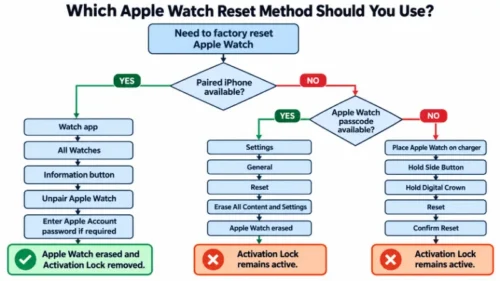
The correct Apple Watch reset method depends on the problem and whether the paired iPhone or Apple Watch passcode is available. A factory reset is not necessary for every issue because it completely erases the device.
For a minor software problem, restarting the Apple Watch should normally be tried first. If the Watch is frozen or unresponsive, a force restart may fix the issue without deleting personal data.
If the Apple Watch needs to be completely erased, the appropriate method depends on the situation:
- Paired iPhone Available: Open the Watch app, select All Watches, tap the information button and choose Unpair Apple Watch. This erases the Watch and removes Activation Lock after the required Apple Account authentication.
- iPhone Unavailable but Passcode Known: Go to Settings > General > Reset > Erase All Content and Settings on the Apple Watch. This deletes the data, but Activation Lock remains active.
- Apple Watch Passcode Forgotten: Place the Watch on its charger and use the side button and Digital Crown to access the reset option. The Watch can be erased without entering the forgotten passcode, although Activation Lock remains active.
- Selling or Giving Away the Apple Watch: Unpairing through the paired iPhone is generally the appropriate method because it erases the device and removes Activation Lock.
After an Apple Watch has been reset and paired again, the owner may also be given the option of a backup during setup. This can bring back supported settings, app data and other previously backed-up information instead of configuring the Watch entirely from scratch.
Choosing the right reset method helps avoid unnecessary data loss and makes it easier to prepare the Apple Watch for re-pairing, restoring from a backup, a fresh setup or transfer to another owner.
How to Reset an Apple Watch Using an iPhone?
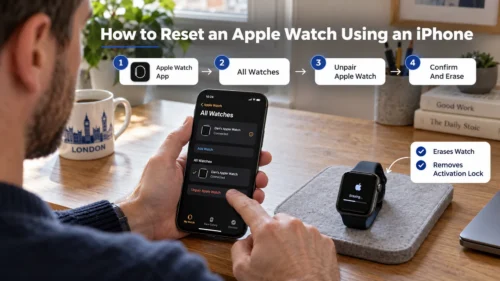
The easiest way to reset an Apple Watch is through the iPhone currently paired with it. This method is particularly useful because unpairing restores the Apple Watch to factory settings and removes Activation Lock at the same time.
Before starting, the Apple Watch and iPhone should be kept close together. The owner should also know the Apple Watch passcode and Apple Account password.
To reset Apple Watch using an iPhone:
- Open the Apple Watch app on the paired iPhone.
- Select the My Watch tab.
- Tap All Watches at the top of the screen.
- Tap the information button next to the Apple Watch that needs to be reset.
- Select Unpair Apple Watch.
- Confirm the unpairing request.
- Choose whether to keep or remove the mobile plan if it is a cellular Apple Watch.
- Enter the Apple Account password when requested.
- Confirm the process and allow the Apple Watch to erase.
Once the process is complete, the Apple Watch returns to its factory settings and can either be paired again or switched off for sale or transfer.
For a cellular Apple Watch, the mobile plan can usually be kept if the same owner intends to pair the watch again. The plan should normally be removed when the device is being sold or given to another person.
Removing the plan from the Apple Watch does not necessarily cancel the network subscription. The account holder may still need to contact the relevant UK network provider.
How to Reset an Apple Watch Without an iPhone?
An Apple Watch can still be factory reset when the paired iPhone is unavailable.
This method erases the information and settings stored on the watch. However, it does not automatically remove Activation Lock.
To reset an Apple Watch without an iPhone:
- Open Settings on the Apple Watch.
- Tap General.
- Scroll down and select Reset.
- Tap Erase All Content and Settings.
- Enter the Apple Watch passcode if requested.
- Choose whether to keep or remove the mobile plan on a cellular model.
- Tap Erase All to confirm.
The Apple Watch will erase its content and return to its factory settings.
If the same person intends to pair the watch again, the cellular plan can normally be retained. If the watch is being transferred to somebody else, the plan should be removed.
The Apple Account previously associated with the watch may still be required during setup because erasing an Apple Watch directly does not remove Activation Lock.
How to Reset an Apple Watch Without a Passcode?
A forgotten Apple Watch passcode does not prevent the device from being reset. However, resetting the watch without its passcode will erase its content.
The Apple Watch should be placed on its charger before beginning the process.
To reset an Apple Watch without a passcode:
- Place the Apple Watch on its charger.
- Press and hold the side button until the power controls appear.
- Release the side button.
- Press and hold the Digital Crown until the red Reset option appears.
- Tap Reset.
- Tap Reset again to confirm.
- Allow the Apple Watch to complete the reset.
After the reset, the Apple Watch can be set up again.
The Apple Account and password previously associated with the device will still be required if Activation Lock is enabled. Resetting a forgotten passcode is therefore not a method for bypassing Activation Lock.
Owners who still have access to the paired iPhone can also erase the Apple Watch through the Apple Watch app.
How to Reset a Frozen Apple Watch?
A frozen Apple Watch usually does not need to be factory reset immediately. A normal restart or force restart should be attempted first.
If the watch is completely unresponsive, a force restart may be necessary.
To force restart an Apple Watch:
- Press and hold the side button and Digital Crown together.
- Continue holding both controls for at least 10 seconds.
- Release them when the Apple logo appears.
- Allow the Apple Watch to restart normally.
A force restart does not erase personal data, apps or settings.
Factory resetting should generally be considered only when restarting does not solve the problem or when the Apple Watch needs to be completely erased and configured again.
How to Reset an Apple Watch and Pair Again?
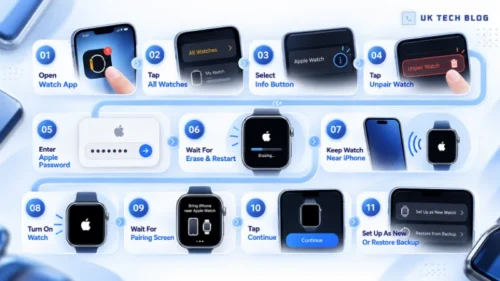
An Apple Watch can be reset and paired again when the owner wants a fresh setup or needs to fix persistent pairing or software problems. If the paired iPhone is still available, unpairing the watch first is usually the simplest approach.
To reset an Apple Watch and pair it again:
- Open the Apple Watch app on the paired iPhone.
- Tap All Watches.
- Select the information button beside the Apple Watch.
- Tap Unpair Apple Watch.
- Enter the Apple ID password when requested.
- Wait for the Apple Watch to erase and restart.
- Keep the Apple Watch close to the iPhone.
- Turn on the Apple Watch if necessary.
- Wait for the Apple Watch pairing screen to appear on the iPhone.
- Tap Continue and follow the on-screen instructions.
- Choose to set up the Apple Watch as new or restore it from an available backup.
If automatic pairing does not start, the Apple Watch app can be opened manually on the iPhone and the option to add or pair a new watch can be selected.
Restoring from a backup can return compatible settings and data to the watch. Setting it up as new may be more appropriate when troubleshooting a problem that could be related to previous settings.
How to Factory Reset an Apple Watch Before Selling It?
Anyone selling, trading in or giving away an Apple Watch should unpair it from the paired iPhone rather than simply erasing it from the watch.
Unpairing is important because it erases personal information and removes Activation Lock. Taking the correct steps before transferring a device can also help secure personal data and reduce the risk of data theft.
Before transferring the Apple Watch:
- Keep the Watch and iPhone Nearby: They should remain close during the unpairing process.
- Unpair the Apple Watch: Use the Apple Watch app on the paired iPhone.
- Remove the Mobile Plan: This should be considered for GPS + Cellular models being transferred to another person.
- Check the Network Subscription: Contact the network provider if the mobile subscription also needs to be cancelled.
- Enter the Apple Account Password: This allows Activation Lock to be disabled.
- Wait For The Erase To Complete: The watch should be fully reset before being handed to the new owner.
When an Apple Watch is unpaired, the paired iPhone also attempts to create a backup. That backup may later be used when setting up another compatible Apple Watch.
Erasing the Apple Watch removes information stored on the device, including installed apps, settings and cards added to Apple Pay.
Does Resetting an Apple Watch Remove Activation Lock?
No. Simply factory resetting an Apple Watch directly from the watch does not remove Activation Lock.
Activation Lock is connected to the Apple Account associated with the Apple Watch. It helps prevent another person from activating and using a lost or stolen device.
The most straightforward way for the legitimate owner to erase an Apple Watch and remove Activation Lock is to unpair it using the paired iPhone and enter the Apple Account password when requested.
If the Apple Watch has already been erased without being unpaired, the Apple Account credentials associated with the device may still be required when it is set up again.
A factory reset should never be viewed as an Activation Lock bypass.
Conclusion
Knowing how to reset Apple Watch correctly depends on what the owner is trying to achieve.
For temporary software problems, restarting or force restarting the watch may be enough. Anyone who wants to erase the device while keeping ownership can perform a factory reset directly from the Apple Watch.
When the paired iPhone is available, unpairing is usually the better option because it erases the Apple Watch and removes Activation Lock. The watch can then be paired again with the same iPhone or set up for a new owner.
An Apple Watch can also be reset without an iPhone or passcode, but Activation Lock may remain afterwards. The Apple Account credentials originally associated with the watch may therefore still be required before it can be activated again.
Choosing the correct reset method helps protect personal information while ensuring the Apple Watch is ready for its next setup.
Frequently Asked Questions
How to Reset Apple Watch Series 3 Without Paired Phone?
An Apple Watch Series 3 can be reset without its paired iPhone by opening Settings > General > Reset > Erase All Content and Settings.
If the passcode is unavailable, the watch can instead be placed on its charger and reset using the side button and Digital Crown. Activation Lock may still remain after the reset.
Too Many Passcode Attempts: How to Reset Apple Watch?
If an Apple Watch displays a message about too many passcode attempts, the watch needs to be erased before it can be used again.
Place it on its charger, hold the side button until the power controls appear, then press and hold the Digital Crown until the Reset option appears. Select Reset and confirm the action.
How Long Does It Take to Reset an Apple Watch?
The reset time varies depending on the Apple Watch model, the amount of stored data and the reset method being used. The watch should remain powered and close to the paired iPhone when unpairing until the process has completely finished.
Does Resetting an Apple Watch Remove the watchOS Update?
No. A factory reset erases personal information and settings, but it does not normally downgrade the Apple Watch to an older watchOS version. The watch generally remains on the currently installed compatible version of watchOS.
Can an Apple Watch Be Reset Without Wi-Fi?
A direct erase can generally be started from the Apple Watch without an active Wi-Fi connection. However, an internet connection may later be required for Apple Account verification, Activation Lock checks, pairing, software updates or restoring certain data.
What Should You Do if an Apple Watch Gets Stuck While Resetting?
The watch should first be given enough time to complete the erase process. If it remains stuck for an unusually long period, the owner can check that it has sufficient charge and attempt a restart where appropriate.
Persistent problems may require Apple support or service.
Does Resetting an Apple Watch Delete Data From the Paired iPhone?
No. Factory resetting the Apple Watch does not erase the personal data stored on the paired iPhone. It primarily removes information and settings stored on the watch itself.
Can You Cancel an Apple Watch Factory Reset After It Starts?
Once the erase process has begun, it generally should not be interrupted. The Apple Watch should remain powered and be allowed to complete the reset before being set up again.
Will Resetting an Apple Watch Fix Battery Drain?
A reset may help when unusual battery drain is caused by a software or configuration problem, but it is not guaranteed to solve battery issues. Battery health, background activity, watchOS behaviour, settings and hardware condition can also affect battery life.
